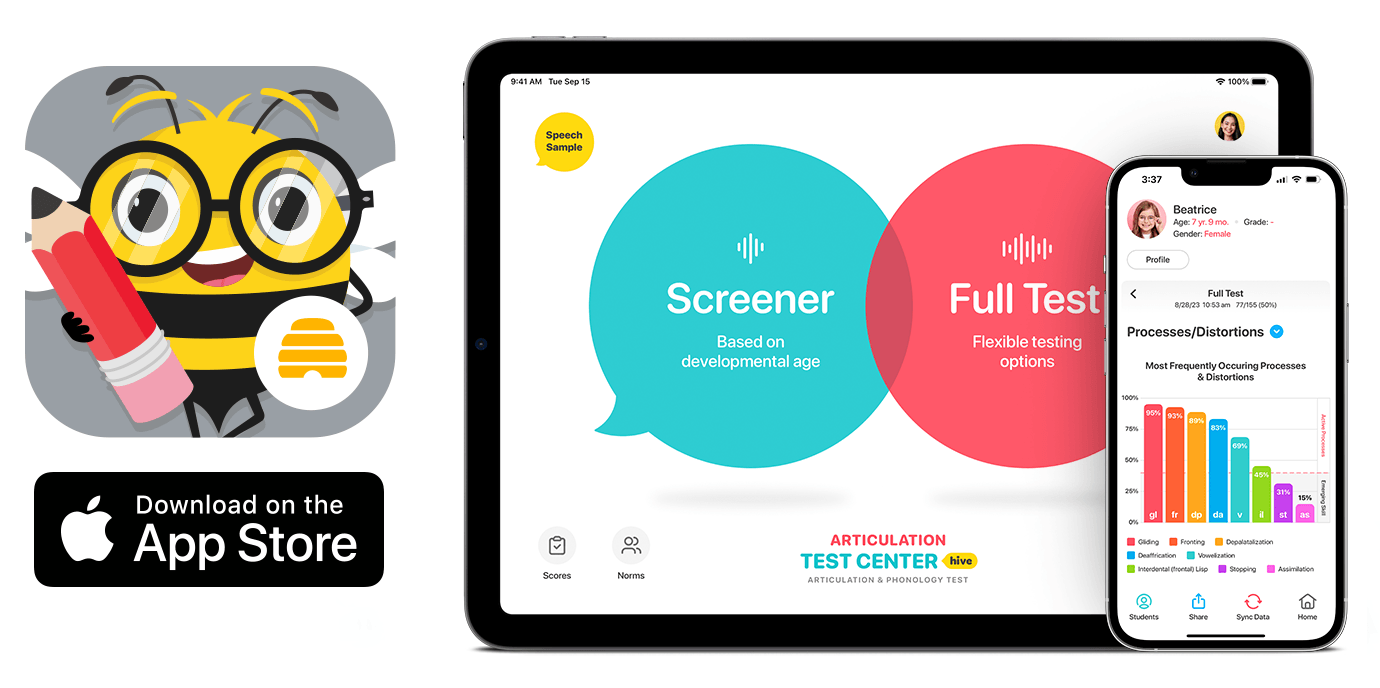
Articulation Test Center Hive for iPad, iPhone & Mac


The Little Bee Hive Information Packet includes all the details about the Little Bee Hive membership and how the free trial and pricing works for your group. Download the packet HERE.
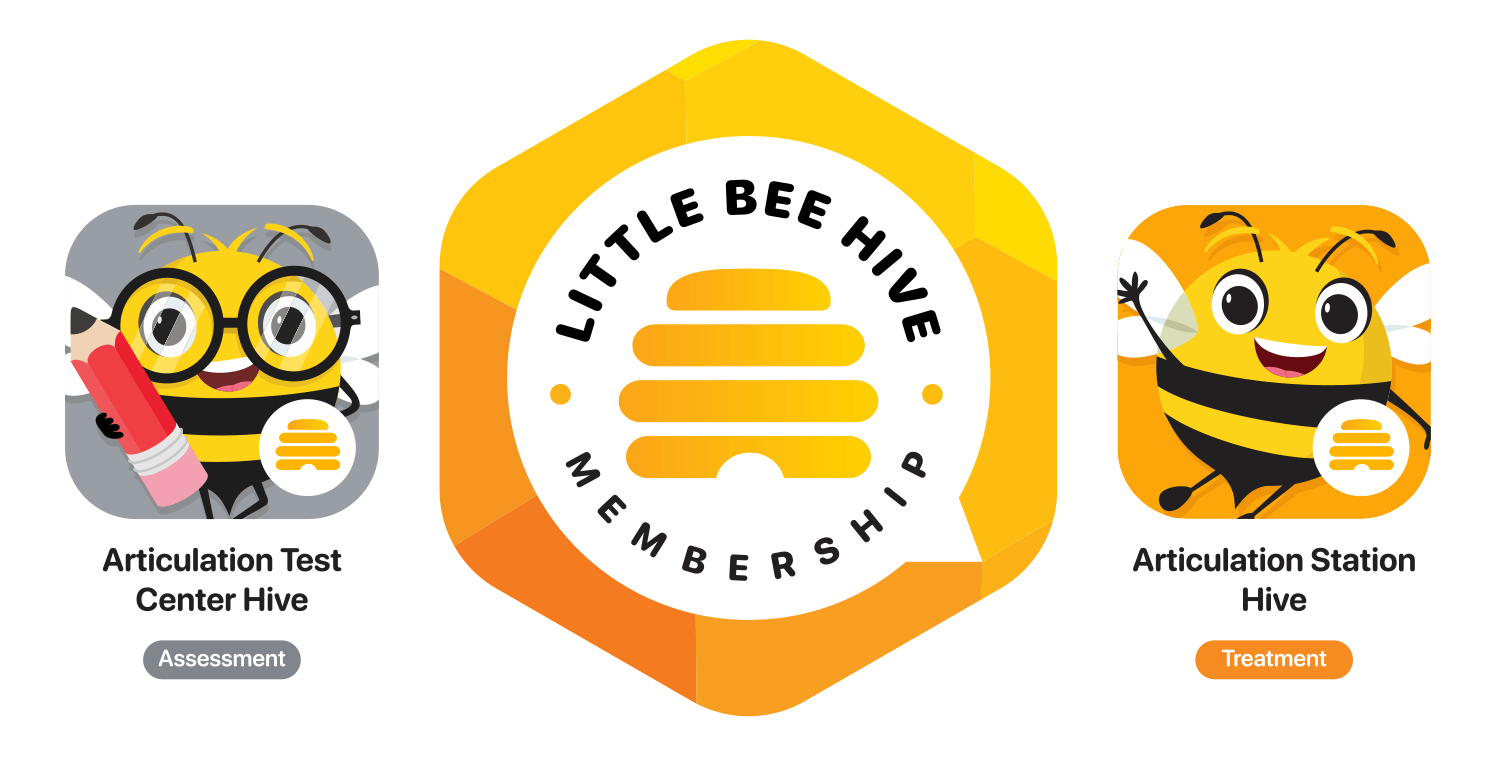
Articulation Test Center Hive (ATC Hive) is based on our popular articulation assessment tool, Articulation Test Center Pro (released in 2013). While it has a similar look and feel, it has been completely rewritten and improved in almost every way. Still, the utility and flexibility you know and love in our three testing options (the Screener, the Full Test, and the Speech Sample) remain the same. Little Bee Hive members will now enjoy access to both Articulation Test Center Hive and Articulation Station Hive in the Little Bee Hive membership.
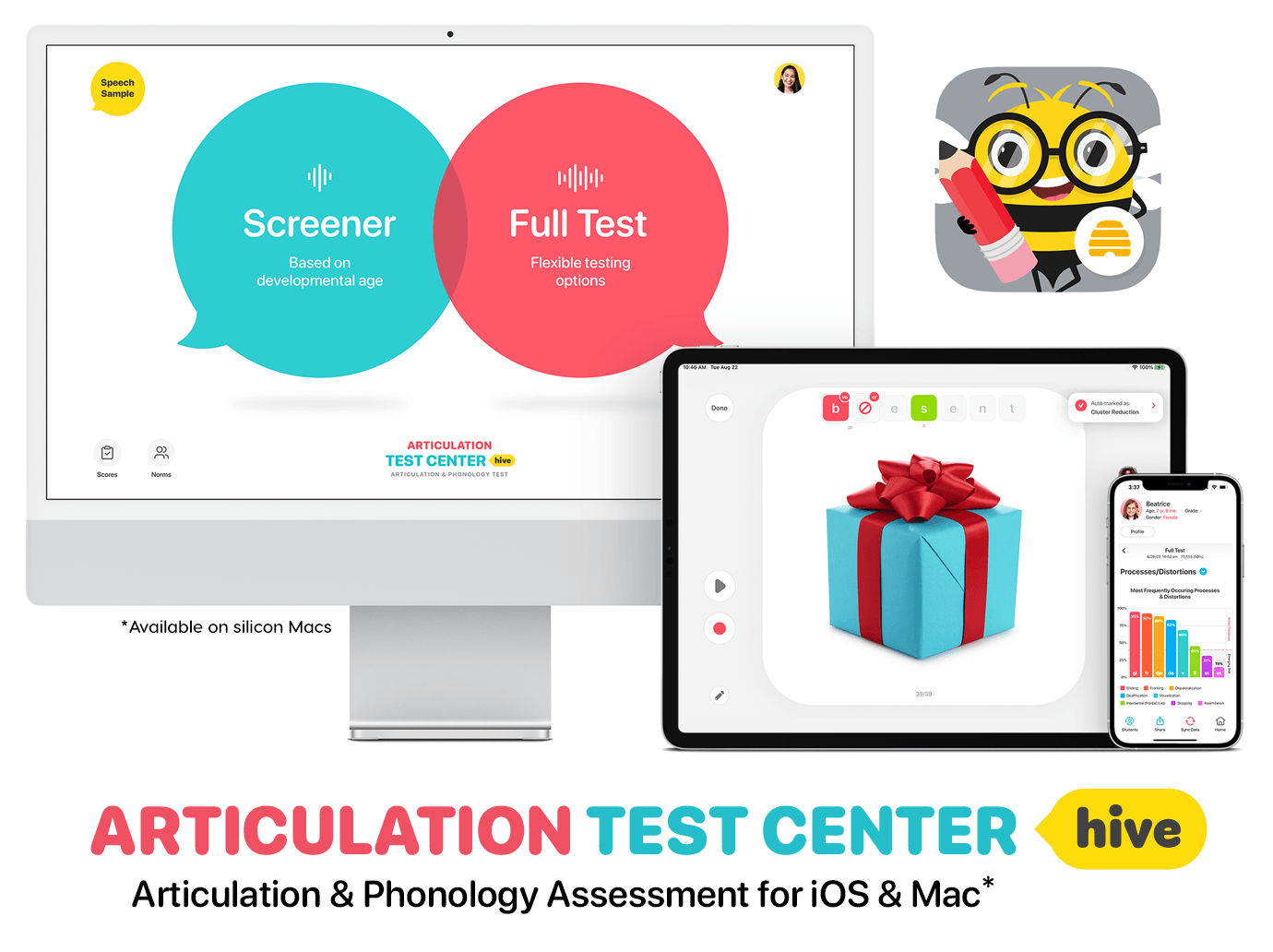
ATC Hive streamlines the assessment process in multiple ways. The adaptable test formats combined with the software’s reporting tools help SLPs more easily see test outcomes and trends so they can clearly set goals and needed interventions. It also simplifies communication with parents, teachers, and others involved in the intervention process.
We will first introduce the Screener and the Full Test because these two tests share a lot of the same operations and formats. But make sure you read about the Speech Sample near the end of this post! The Speech Sample has an amazing capacity to pull everything together and give you an overall picture of a student’s speech and language skills in conversation.
The Screener and the Full Test
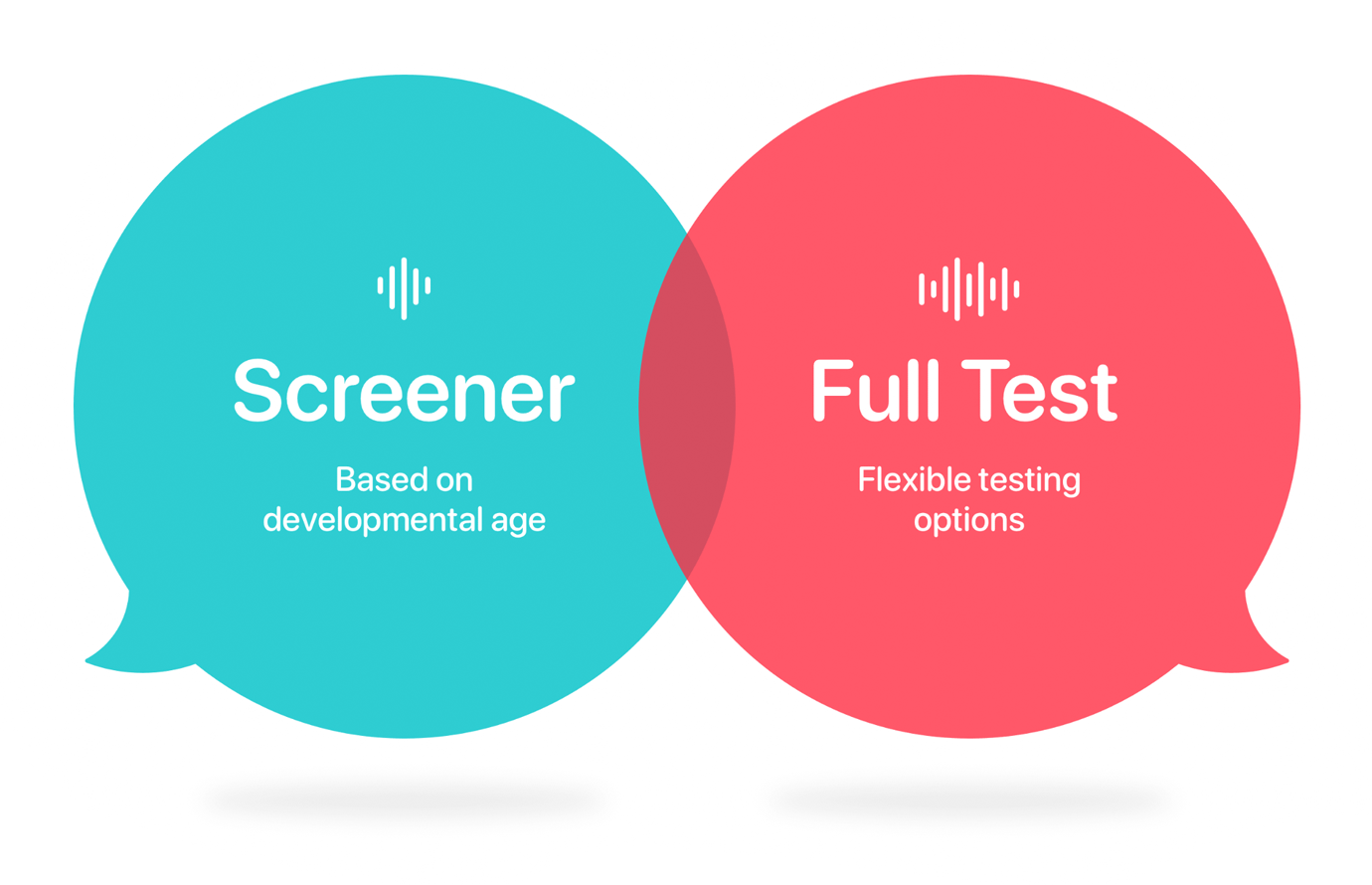
The Screener assesses the sounds that are developmentally appropriate based on age. When a screener is selected, the sounds tested are displayed so the SLP can choose the appropriate screener based on the student’s age and the sounds desired for testing.

The Full Test assesses all the speech sounds in the English language including consonants, vowels, vocalic Rs, and initial blends. This test is designed for maximum flexibility. Click the red Full Test button to test all of the sounds. Click a blue test button or any combination thereof to customize the sounds you test.
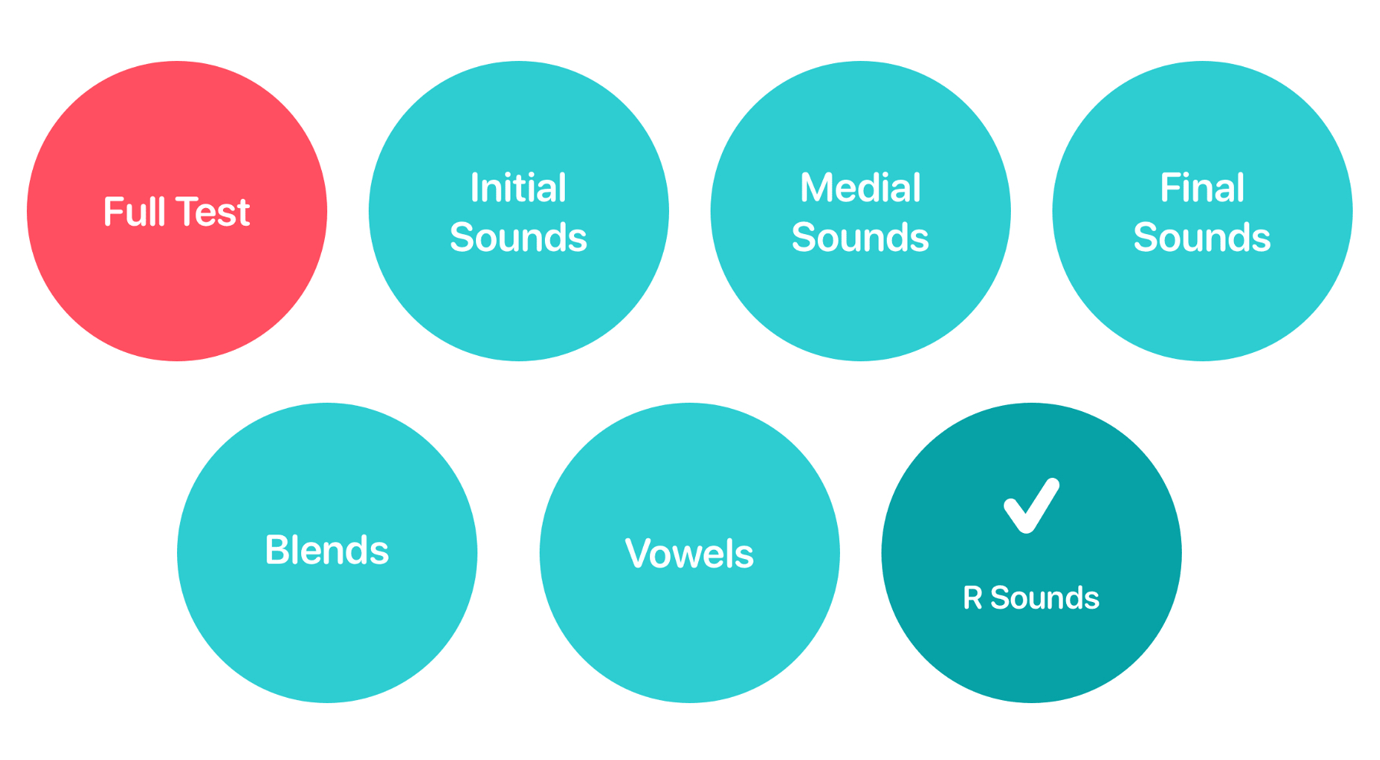
Once the test begins the test administrator can easily mark sound errors, substitutions, omissions, phonological processes, and distortions. Audio can be recorded and saved allowing the test administrator to score or edit the scores at a later time. Notes can be taken during the test or after the test has been administered.
Recording Features in the Screener and the Full Test
The recording features in ATC Hive are both intuitive and useful. The record button (located next to each stimulus card) automatically restarts as each stimulus card is advanced. This allows each word to be recorded in its own file, further increasing the flexibility and use of the recording. The playback button is above the record button.
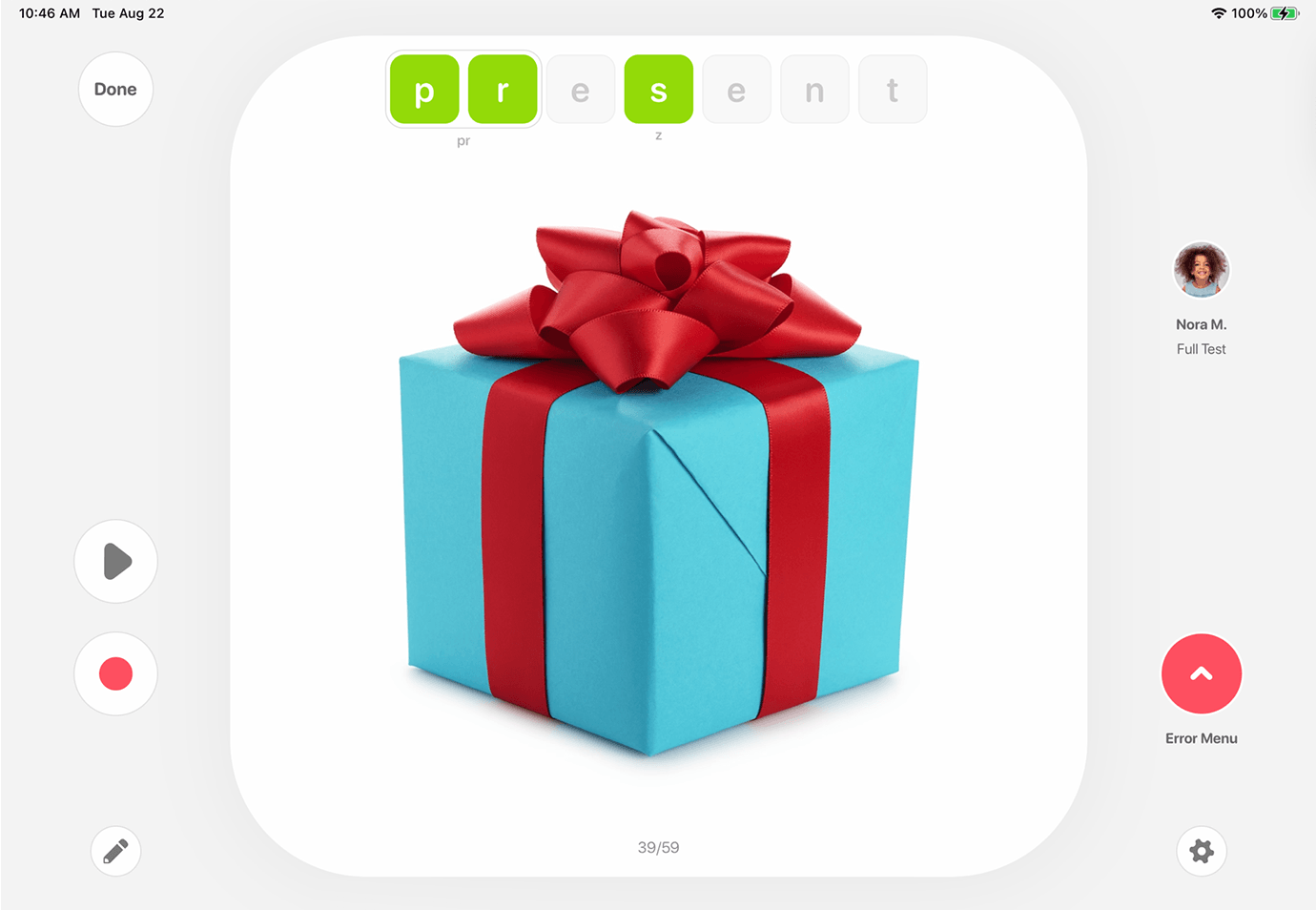
If a child does not recognize the stimulus, you can tap the image for an audio model. The record features are designed to help you administer the tests as you most prefer; thus, you can turn off the record button and/or the audio model in settings.
Scoring Features in the Screener and the Full Test
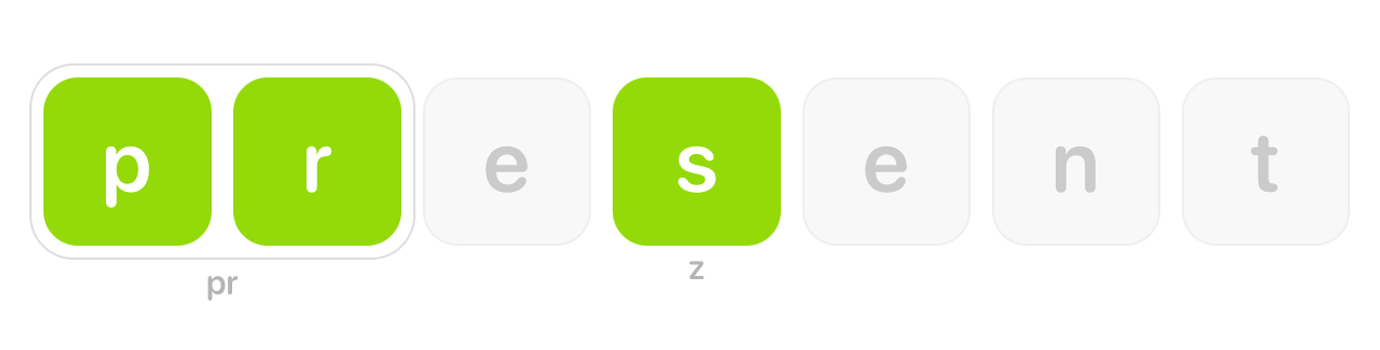
The green tiles located at the top of each stimulus card act as the command center for your test. The scoring actions are easy for the tester to master and are designed to be subtle, thus minimizing distractions for the student. These green tiles indicate which sound or sounds are being tested, and the sound being tested is displayed phonetically below. The simple scoring techniques are explained below, and it becomes even easier when your device is in hand.
Correct
By default, the scoring tiles are green, marking the sounds tested as correct. If no speech errors are made on the sounds tested, simply proceed to the next stimulus card by swiping the card to the left.
Incorrect
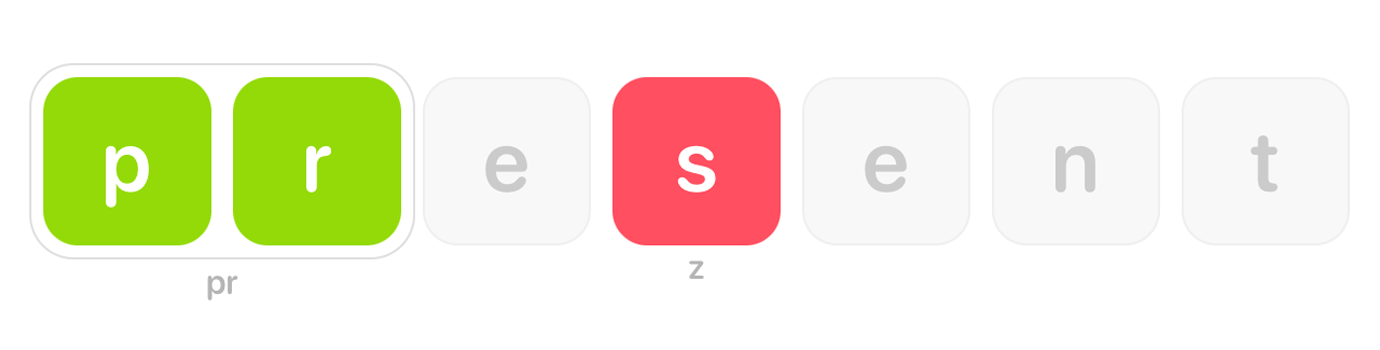
If a sound being tested is said incorrectly, tap the tile once and it will turn red. A red tile indicates the sound is now marked as incorrect.
Approximate
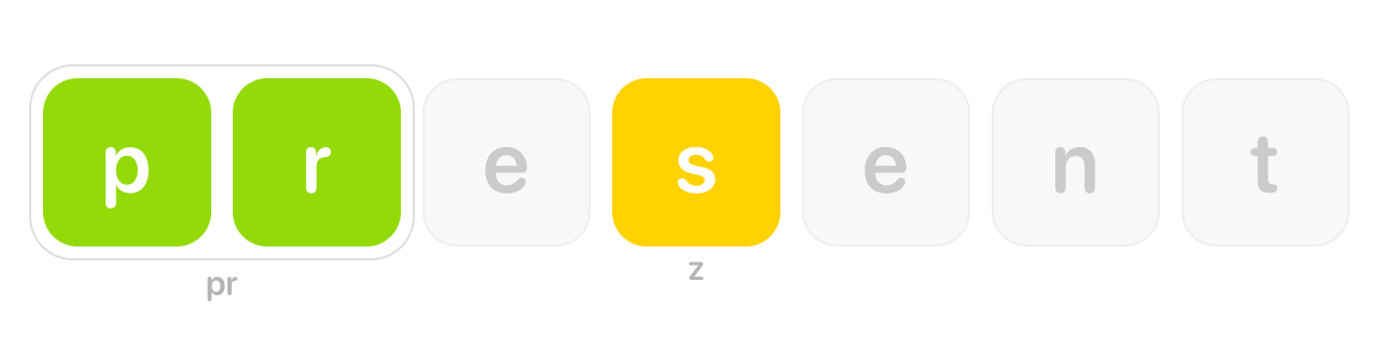
To mark a sound as approximate, tap the card again and it will turn from red to yellow.
Omitted
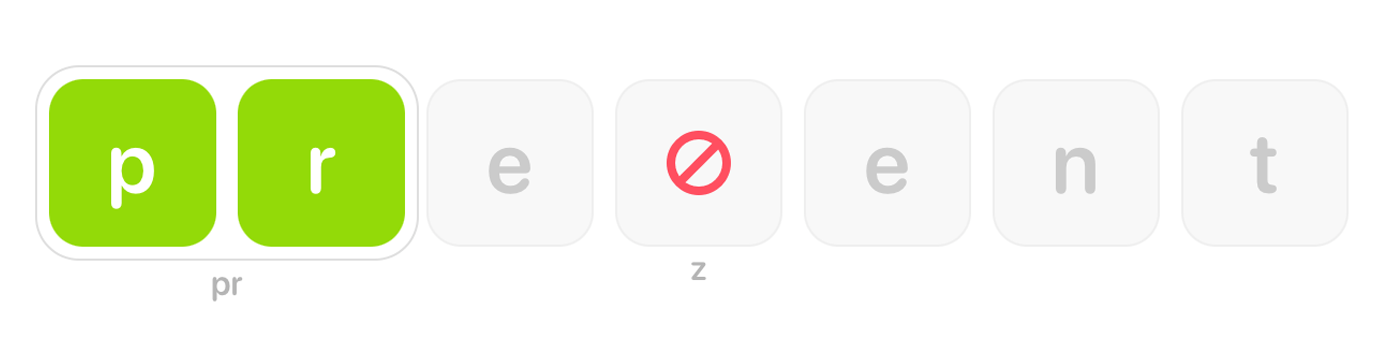
A fourth tap will mark the tile as omitted. You can also mark a sound as omitted by simply swiping the green sound tile away from its position. In both marking instances, a gray tile for that sound will then show an omission symbol.
Error Menu
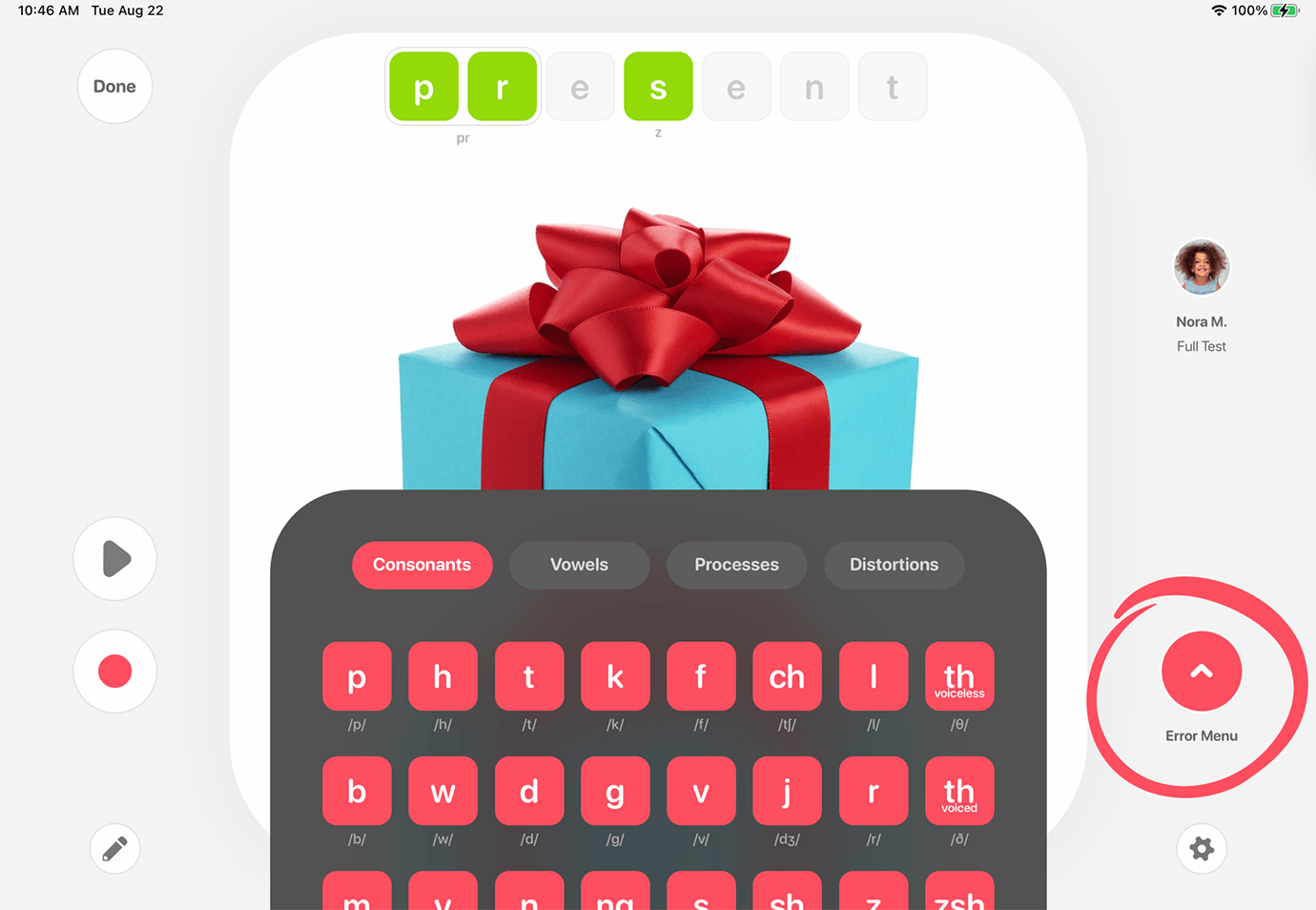
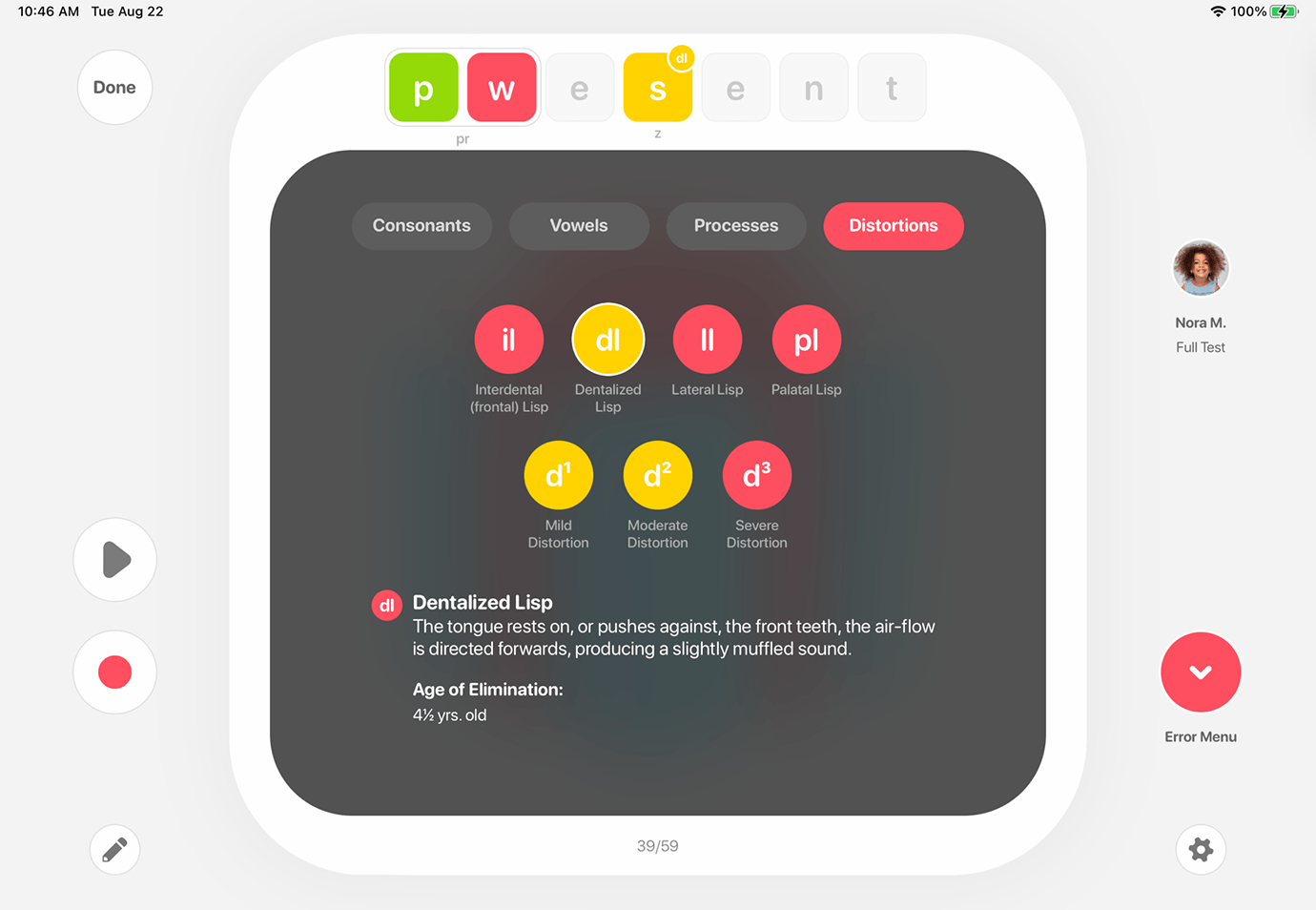
To mark substitutions, phonological processes, or distortions, tap the Error Menu button on the right margin next to the stimulus card. The error menu will appear with the option to choose consonants, vowels, processes, or distortions. To remove the Error Menu and uncover the stimulus card, tap the Error Menu button again.
Substitutions
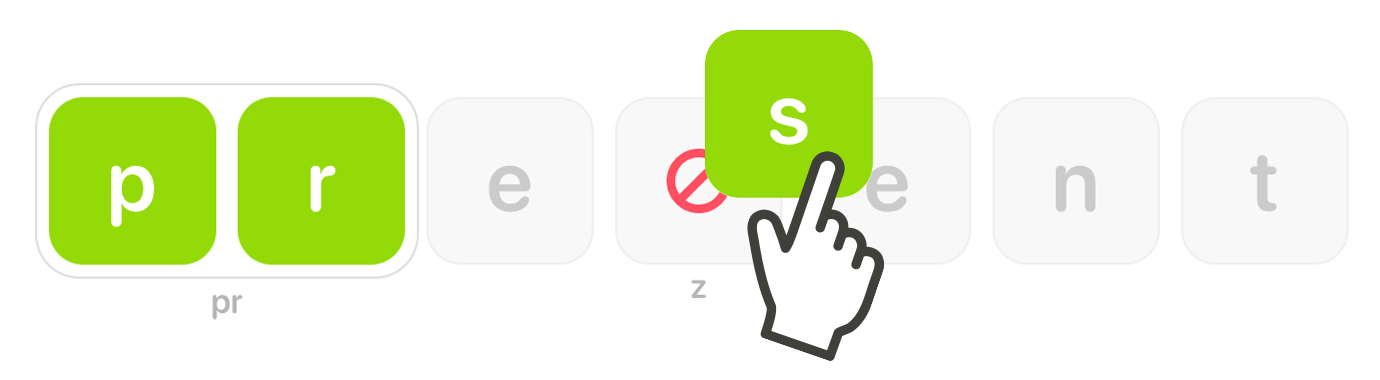
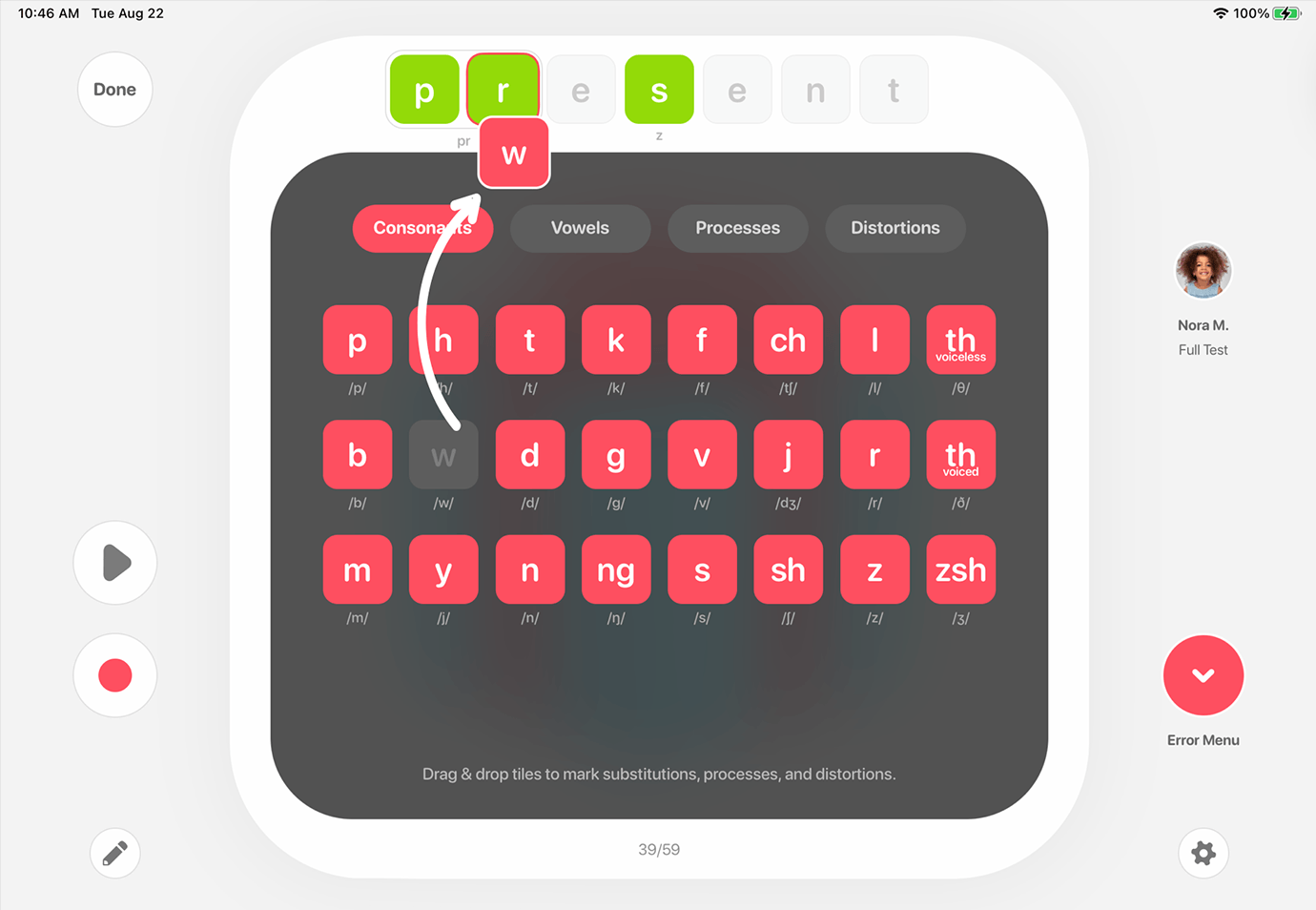
To mark a substitution, go to the Consonants or Vowels tabs at the top of the Error Menu and locate the incorrect sound that was said. Drag the red sound tile that corresponds with error and drop it on top of the green sound tile that was being elicited.
Phonological Processes
Most phonological processes will be automatically marked when a substitution is made if auto-marking is turned on in the ATC Hive Settings.
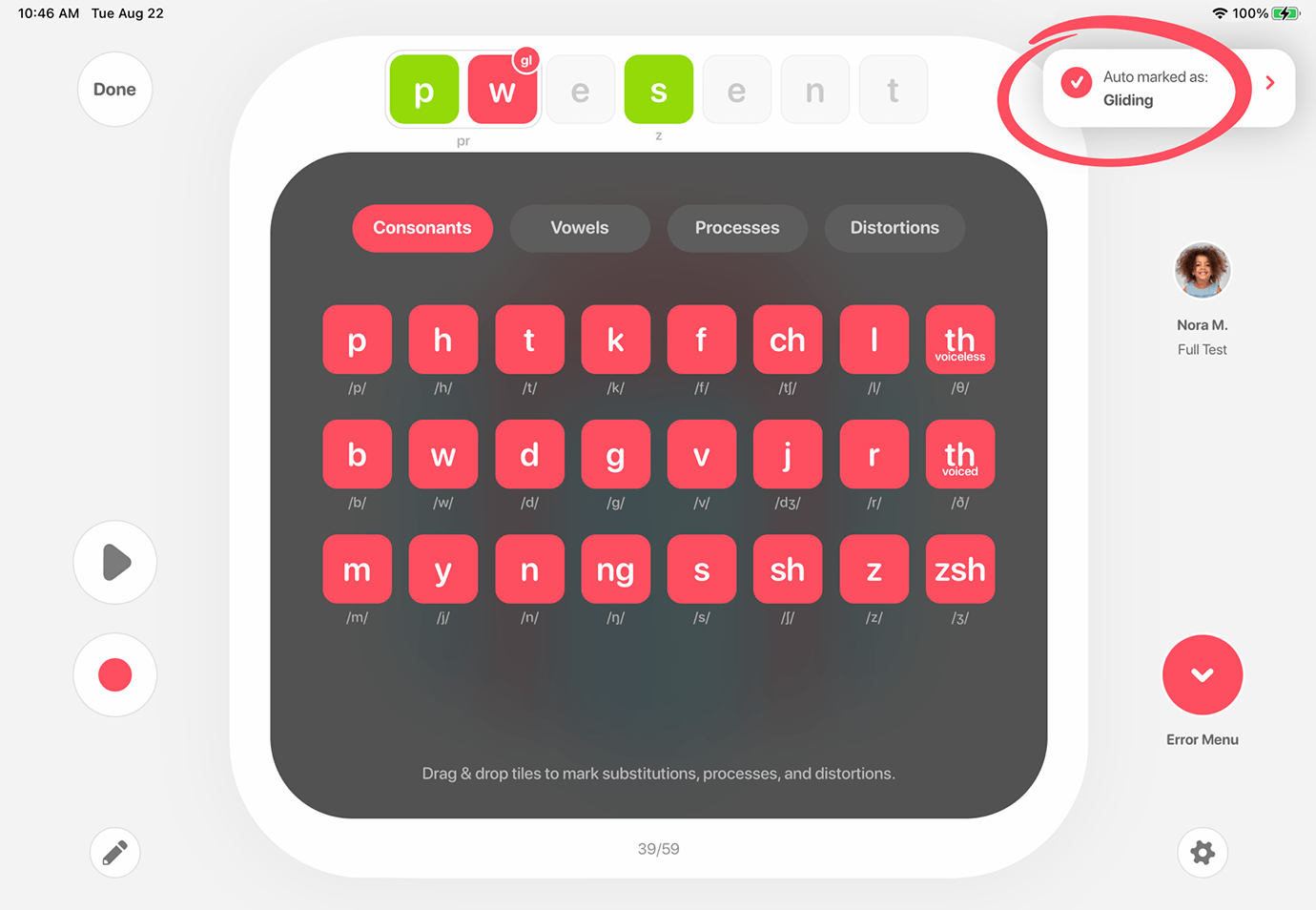
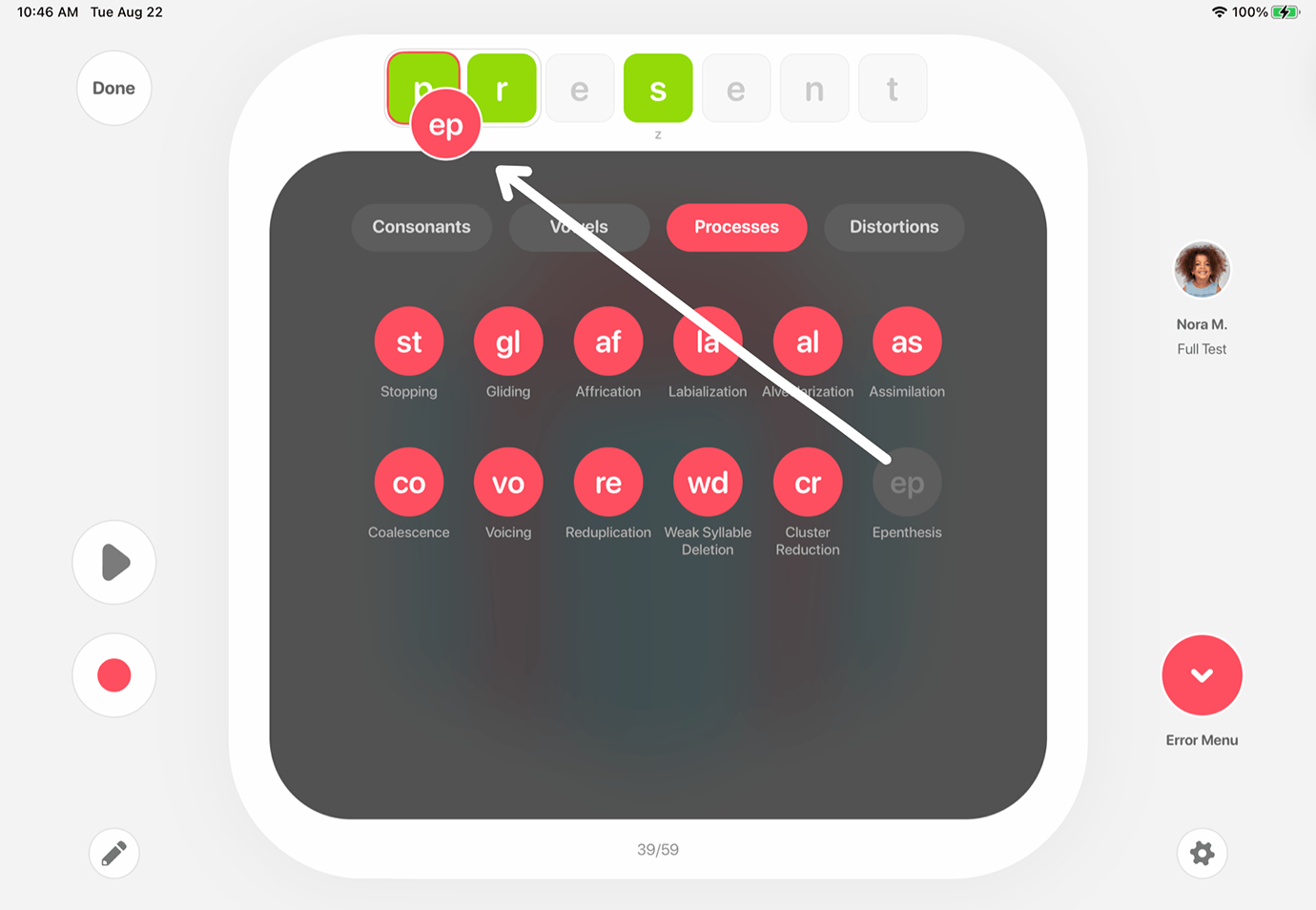
To mark a phonological process that is not auto-marked, tap the ‘Processes’ tab at the top of the Error Menu. Then drag and drop the process name over the scoring tile.
Distortions
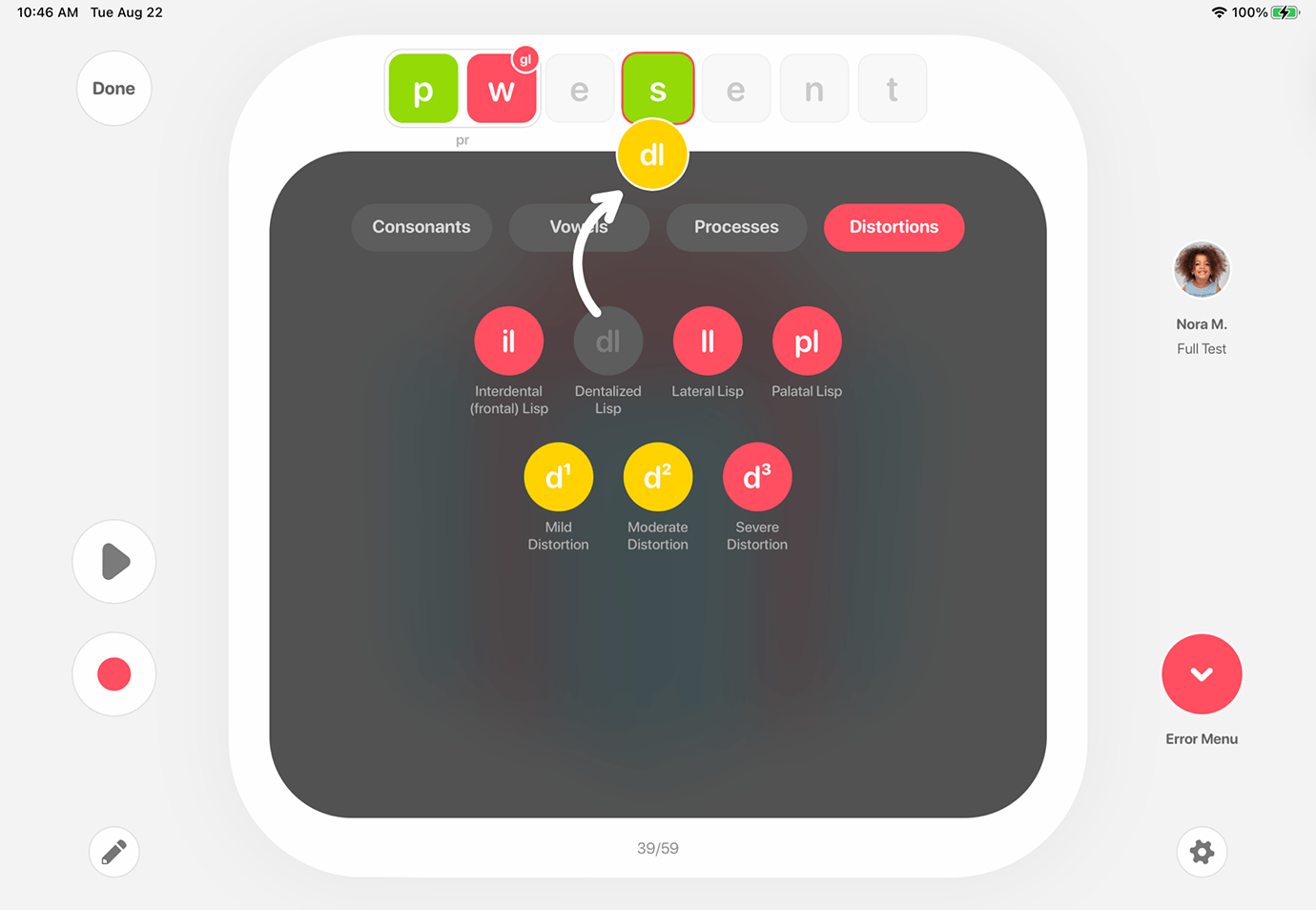
To mark a distortion, tap the Distortions tab at the top of the Error Menu. Then drag and drop the applicable distortion onto the scoring tile of the sound that was distorted.
Settings
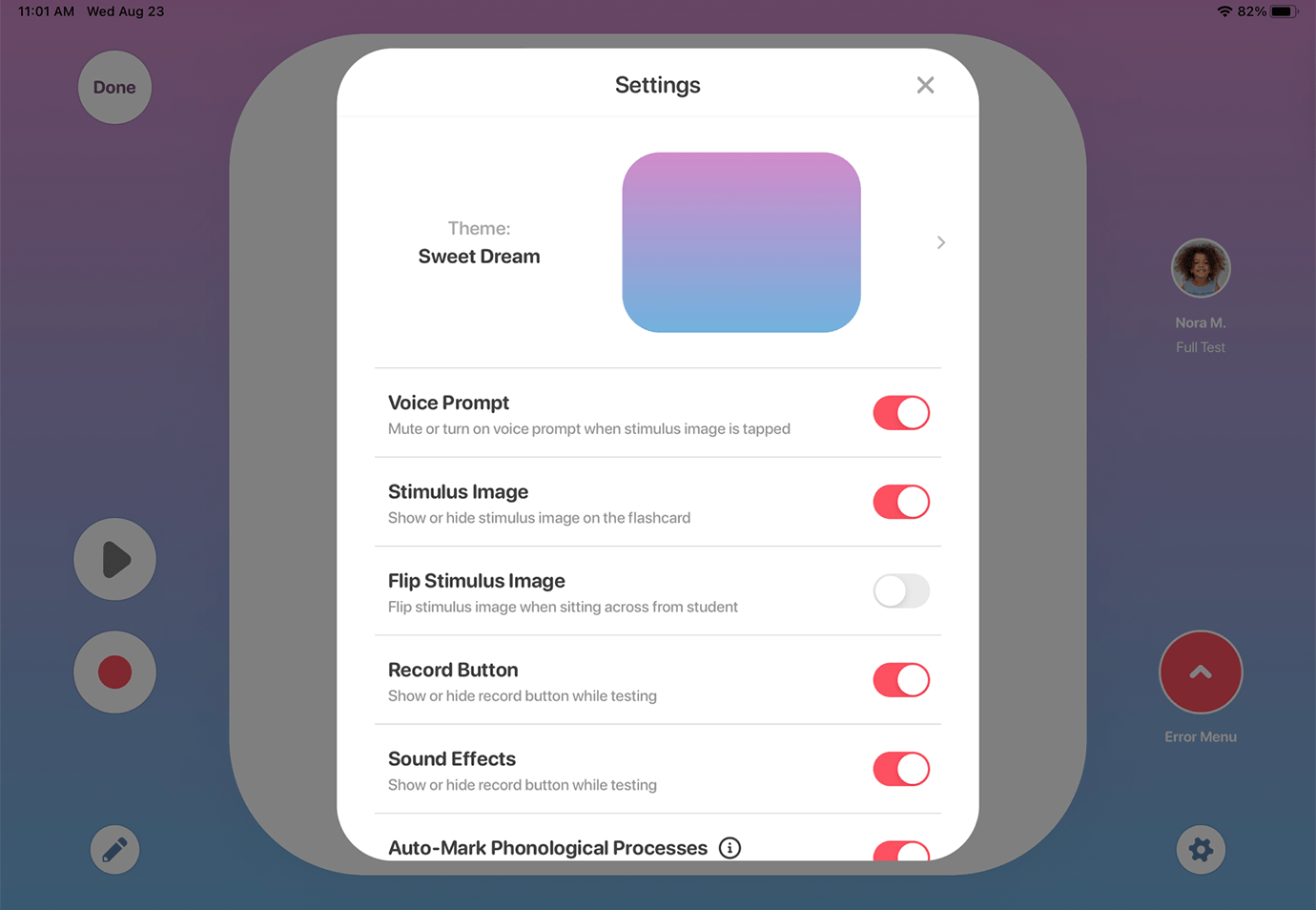
We have designed ATC Hive to be flexible and serviceable. Settings like turning off the record button or the voice prompt have already been highlighted, but you can do more to customize your testing experience. For example, you can rotate the image to face the other way when you sit across from your student. You can also turn off sound effects when you need a quieter testing environment. The auto-mark features can also be disabled when desired.
Themes
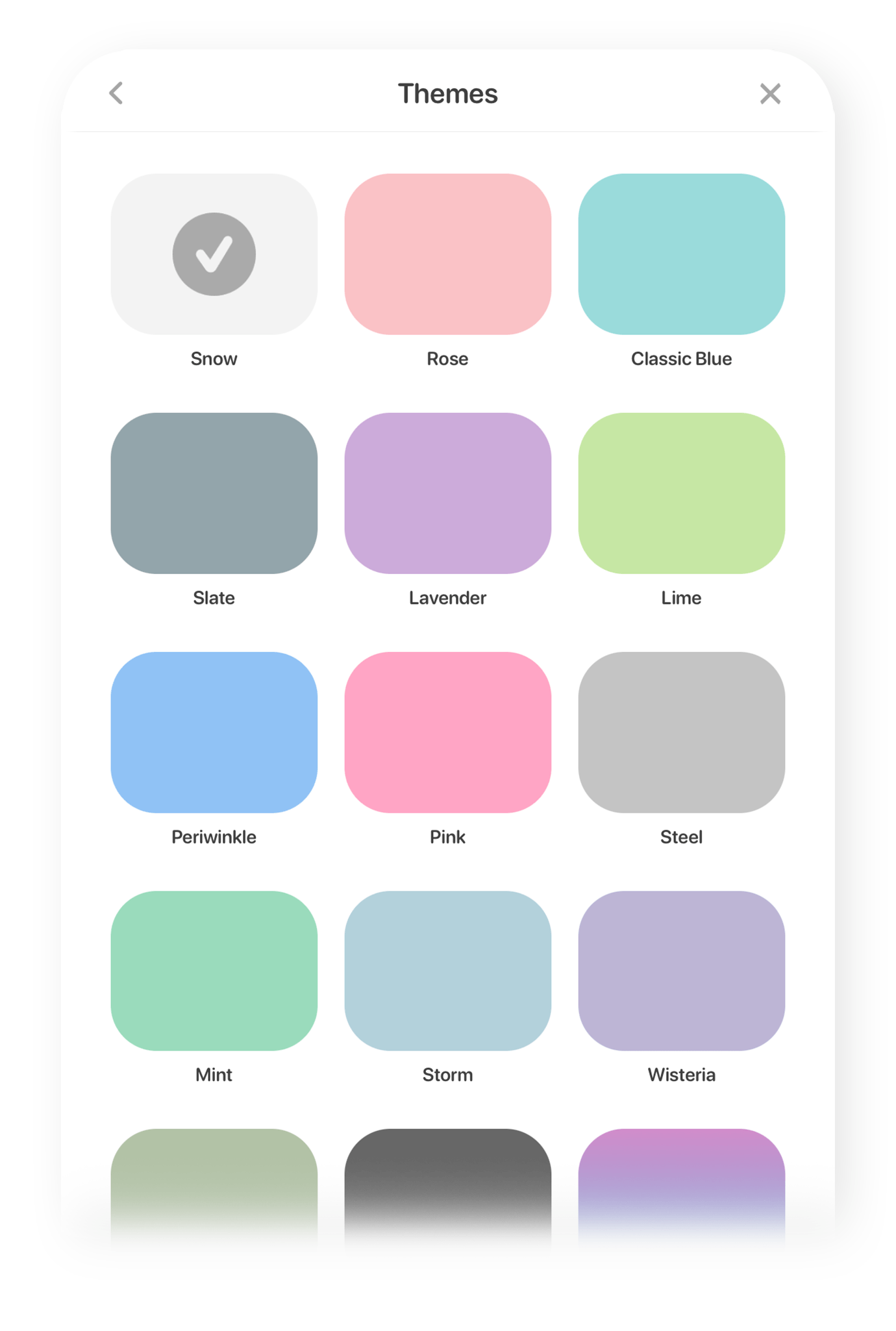
You will love how you can customize the testing experience by choosing from one of our 24 colorful themes–each designed to invite fun and interest.
Notes
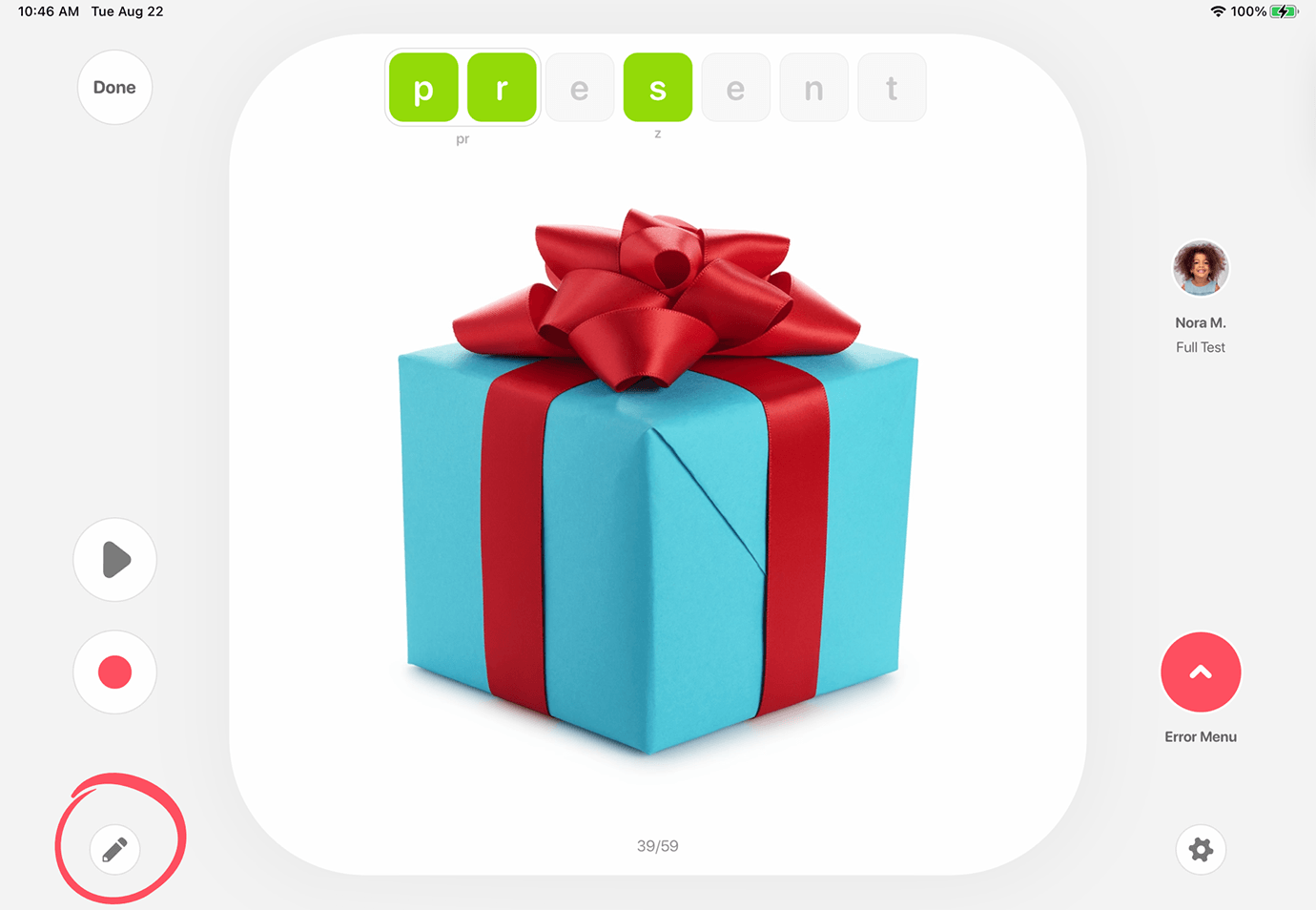
Another favorite feature is the option to take notes. Tap on this button to make pertinent notes during (or after) the testing process.
The Speech Sample
The Speech Sample provides a wonderful opportunity to test a student’s speech and language skills in connected speech, and it provides a more accurate measure of intelligibility. This test offers two engaging speech scenes that are designed to be fun, flexible, and interactive. It also provides opportunities for you to let your student take the lead in conversation. An audio sample can be recorded while the child explores and talks about the scene. This allows the tester to be more present in conversation and it also provides a record for assessment.
The speech sample portion of the test can be used to assess the following:
• intelligibility
• articulation skills in conversation
• language skills including syntax, semantics, morphology, and pragmatics
• mean length of utterance (MLU)
• fluency
You will automatically be presented with the opportunity to use the Speech Sample at the end of the Screener or the Full Test. You can also select the Speech Sample at any time from the home screen.
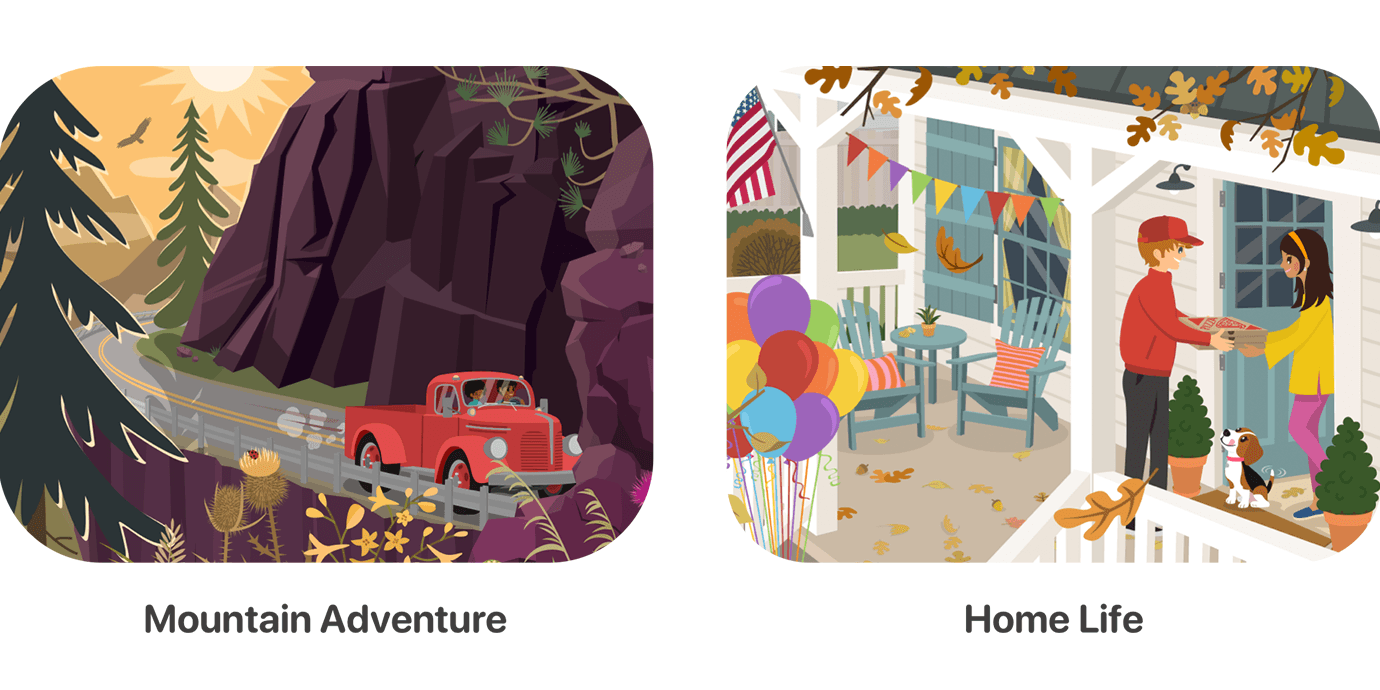
Begin by selecting the speech scene you want to explore. You can take an adventurous ride in the Mountain Adventure scene. Here you will find animals big and small as well as engaging outdoor activities. A fun contrast to the outdoor adventure is the Home Life scene. Here you will find family, friends, and neighbors in a wide variety of everyday activities. From making dinner to backyard birthday parties, there are a lot of great things to talk about.
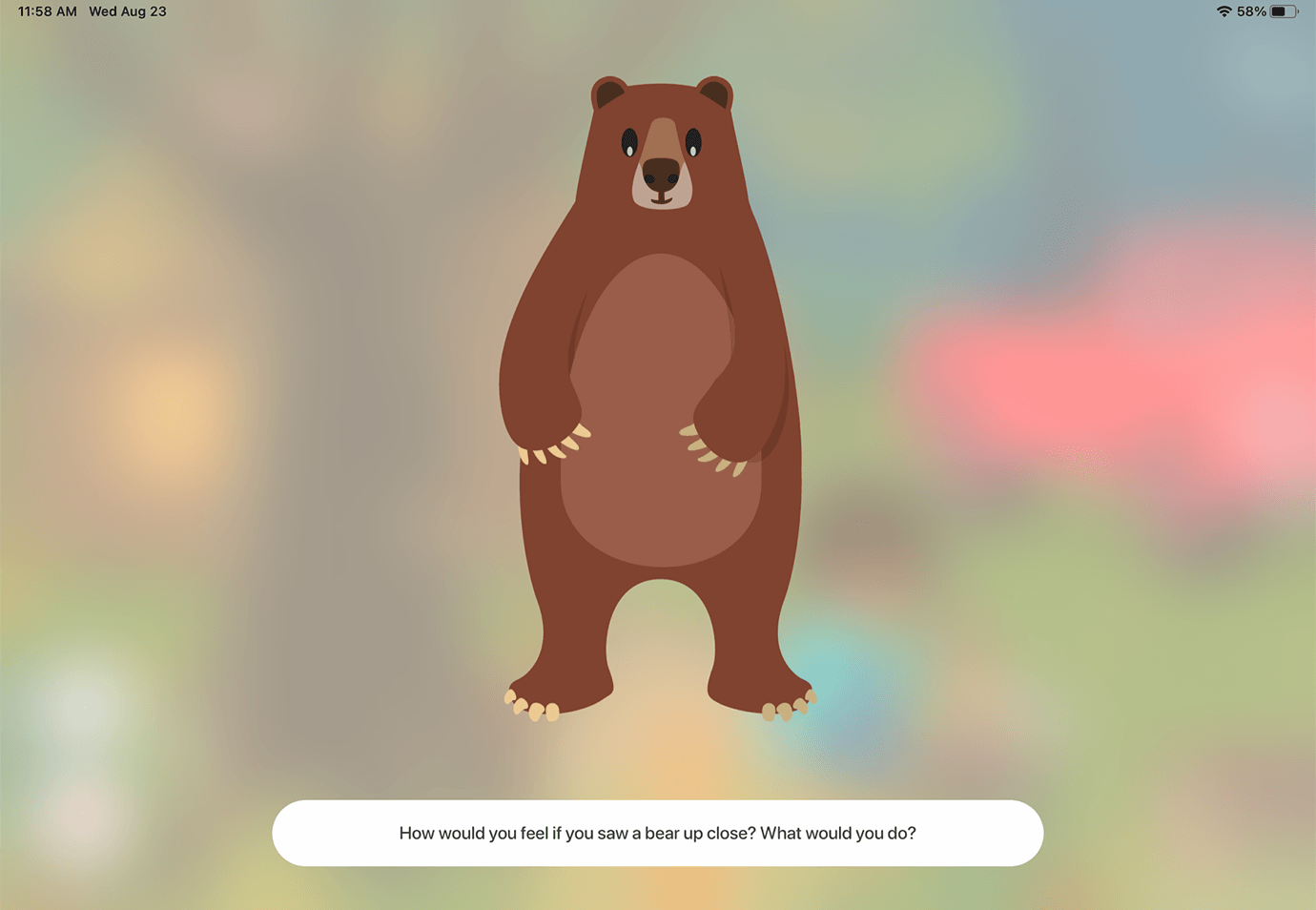
In both speech scenes, you and your student will enjoy our tap-and-talk feature. Simply tap on images to reveal questions that can help further your conversation. Not only does this help create continuing opportunities to talk, it also has the capacity to help your learner feel like they have ownership in the conversation as they select images they want to talk about.

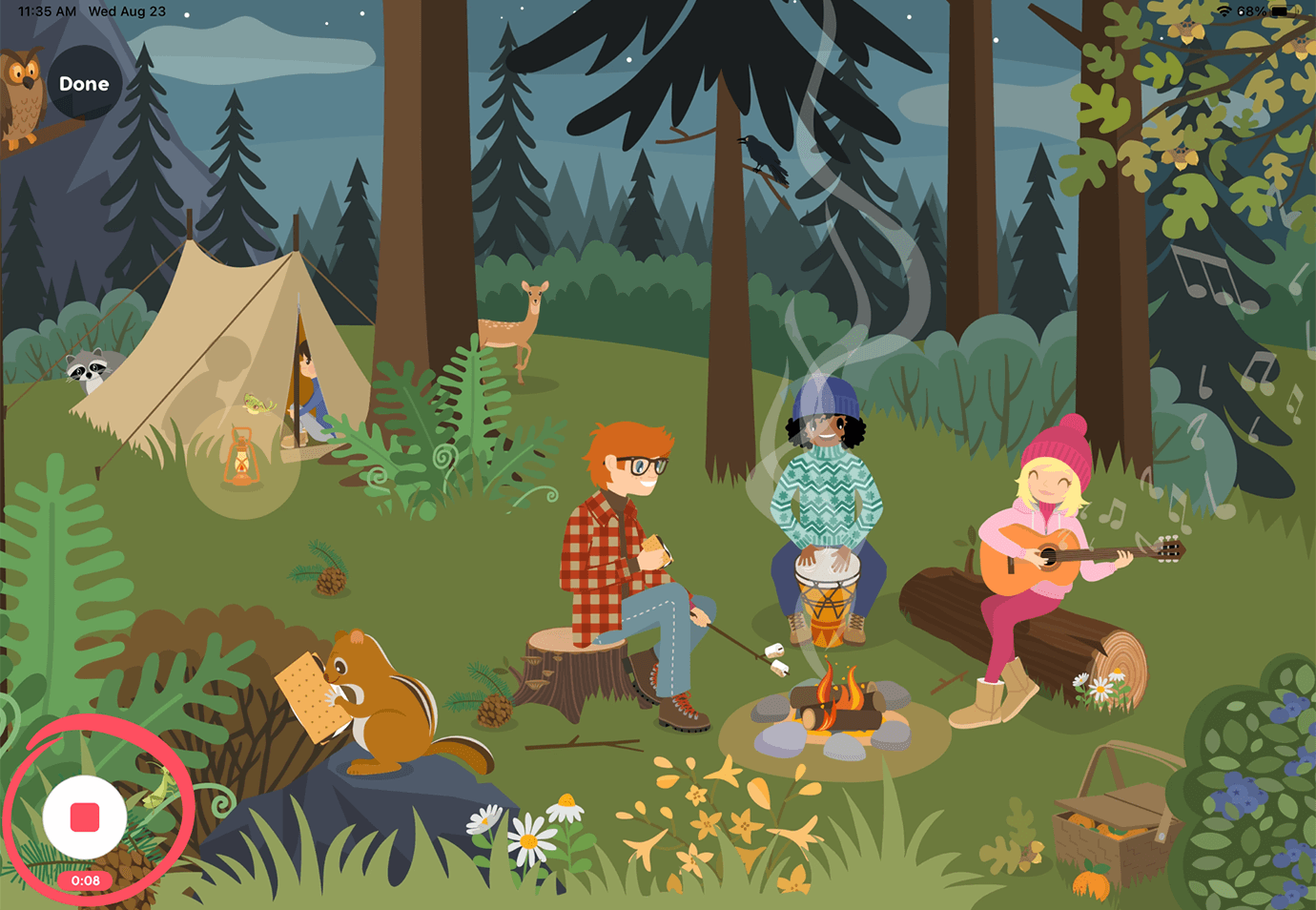
The Speech Sample is so easy to use. If you wish to record, simply tap the Record button in the lower left corner of the screen. A counter below the Record button will keep track of the length of the recording. Explore the full scene by swiping from right to left. When you are done with your speech sample, tap the Done button in the upper left hand corner of the screen to save your recording and end the session. That’s it! It’s simple in execution but invaluable in assessment.
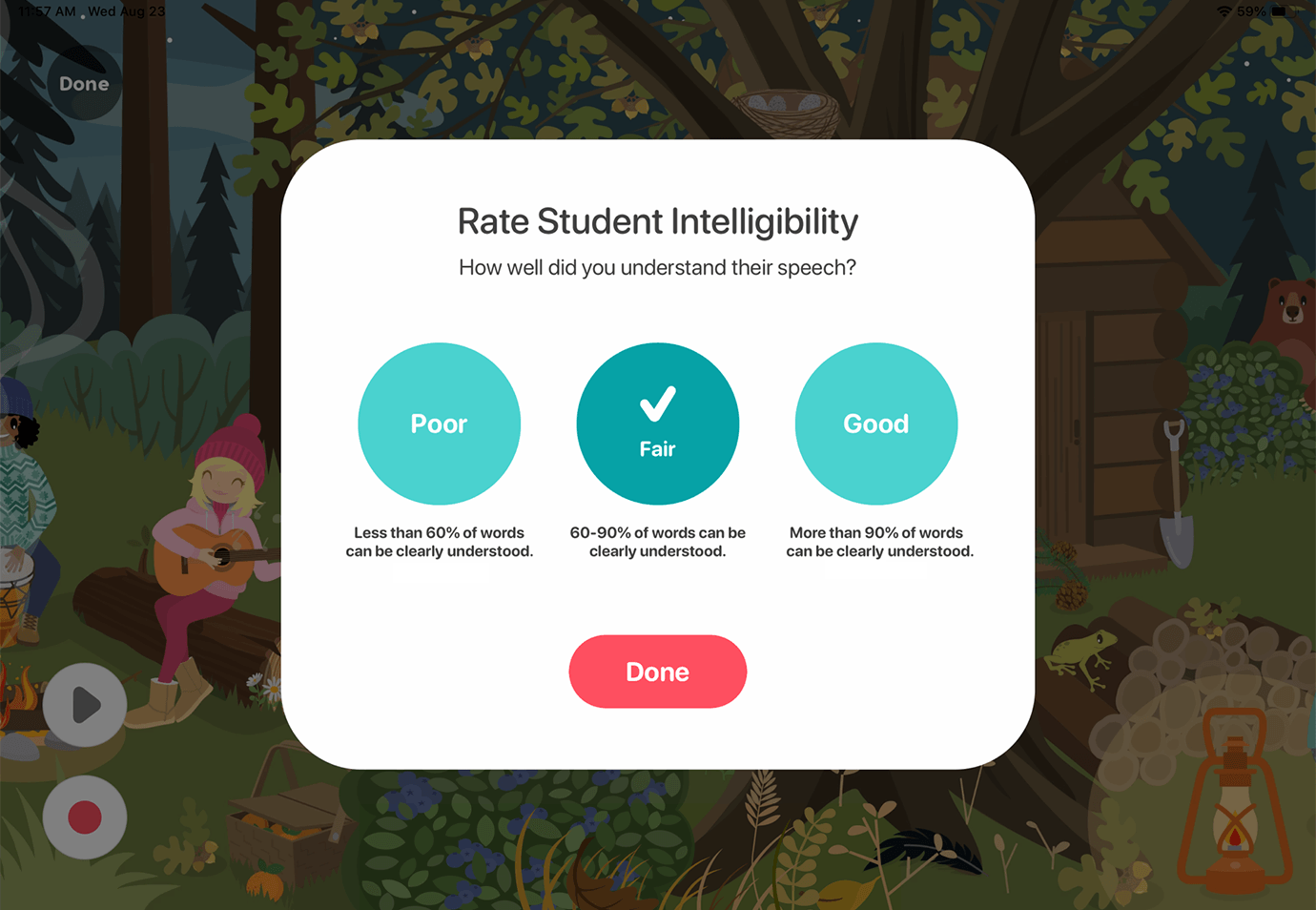
At the end of each speech sample scene you have the opportunity to rate the student’s intelligibility.
How to View Data and Create Reports
Scores Overview
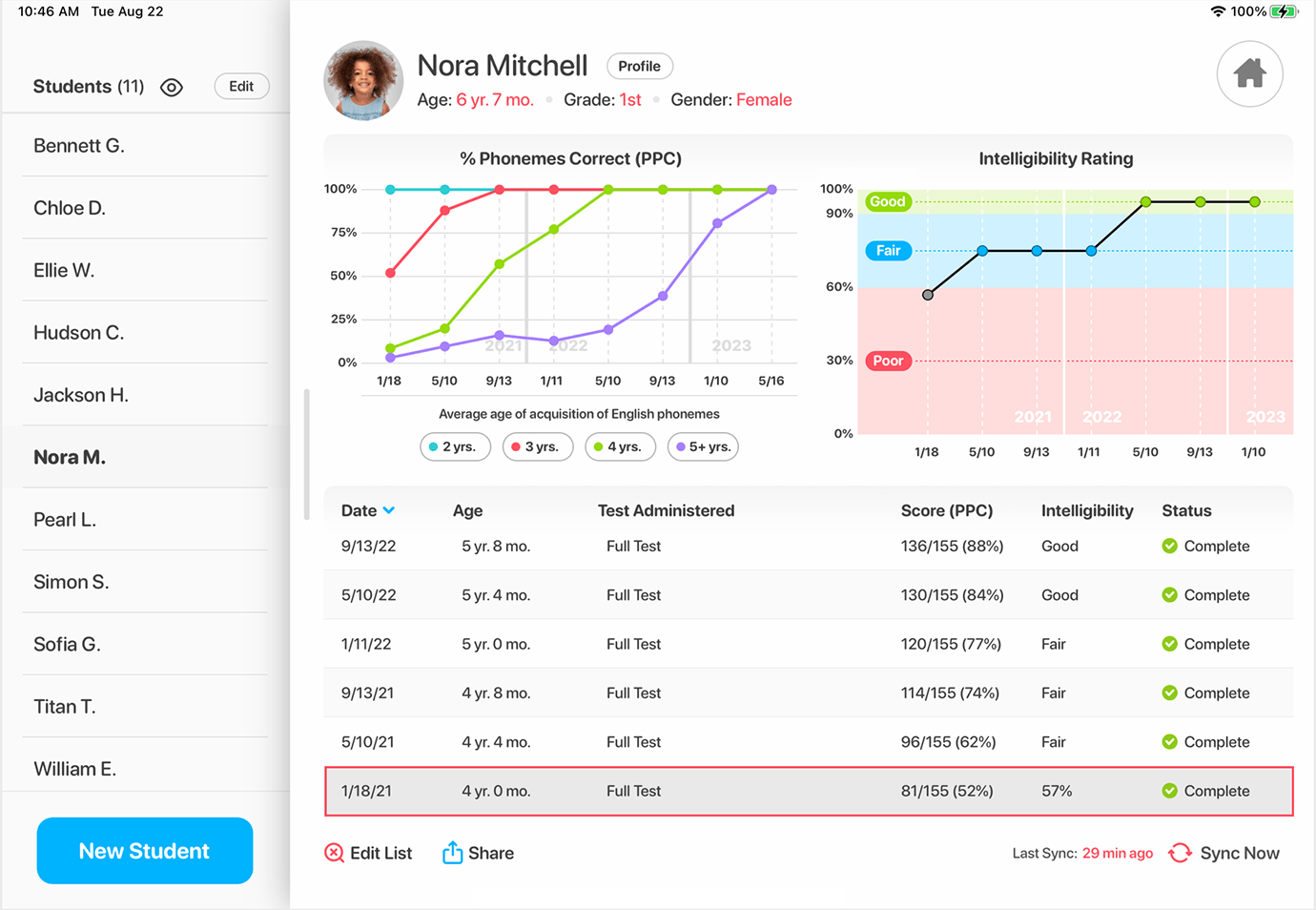
The scores summary screen is designed to give you an assessment snapshot on each of your students. It displays a student identifier, progress graphs for Percent Phonemes Correct and Intelligibility, and a list of tests given. Tap in further for a wealth of data, lists, and reporting features.
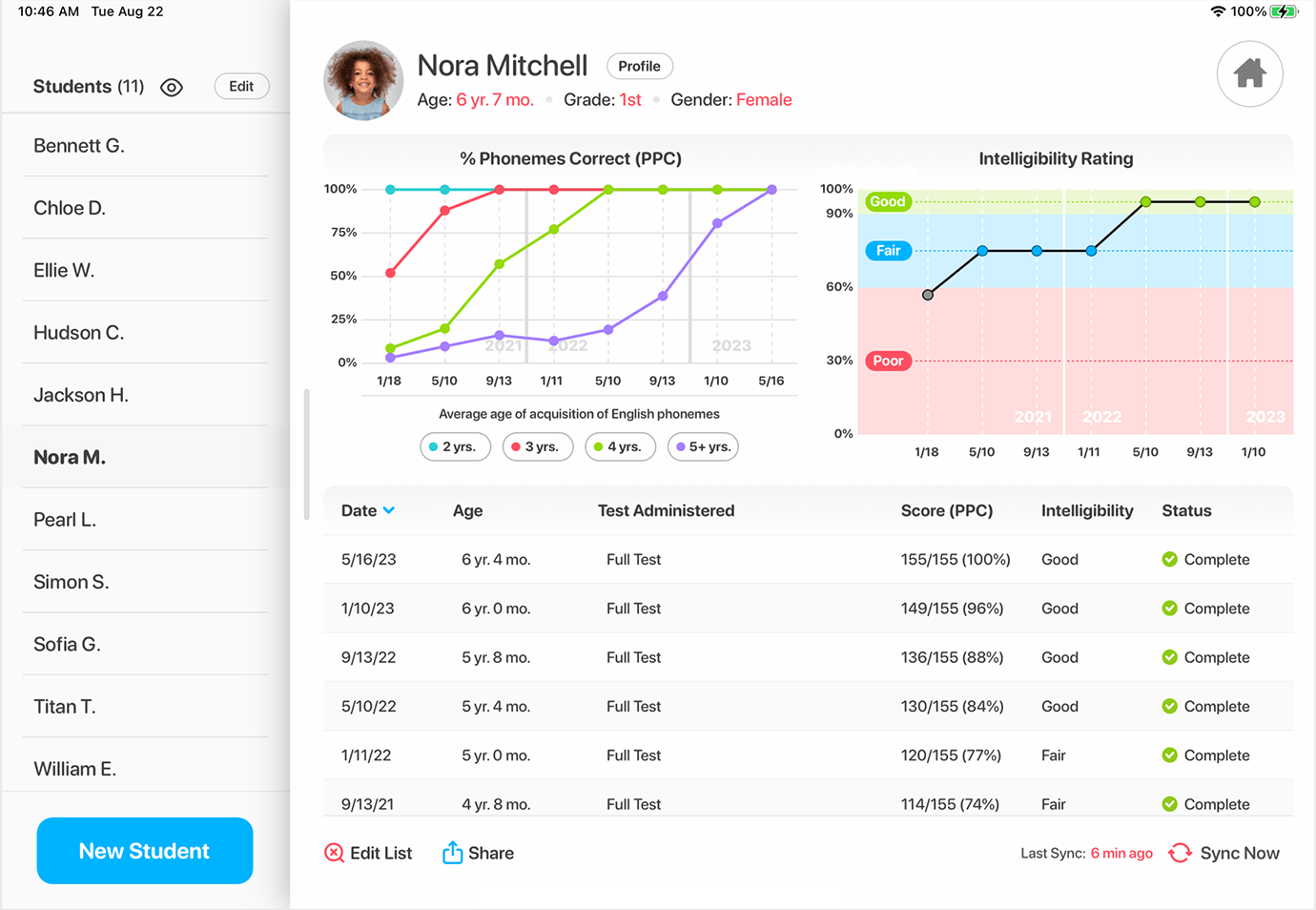
% Phonemes Correct (PPC) Graph
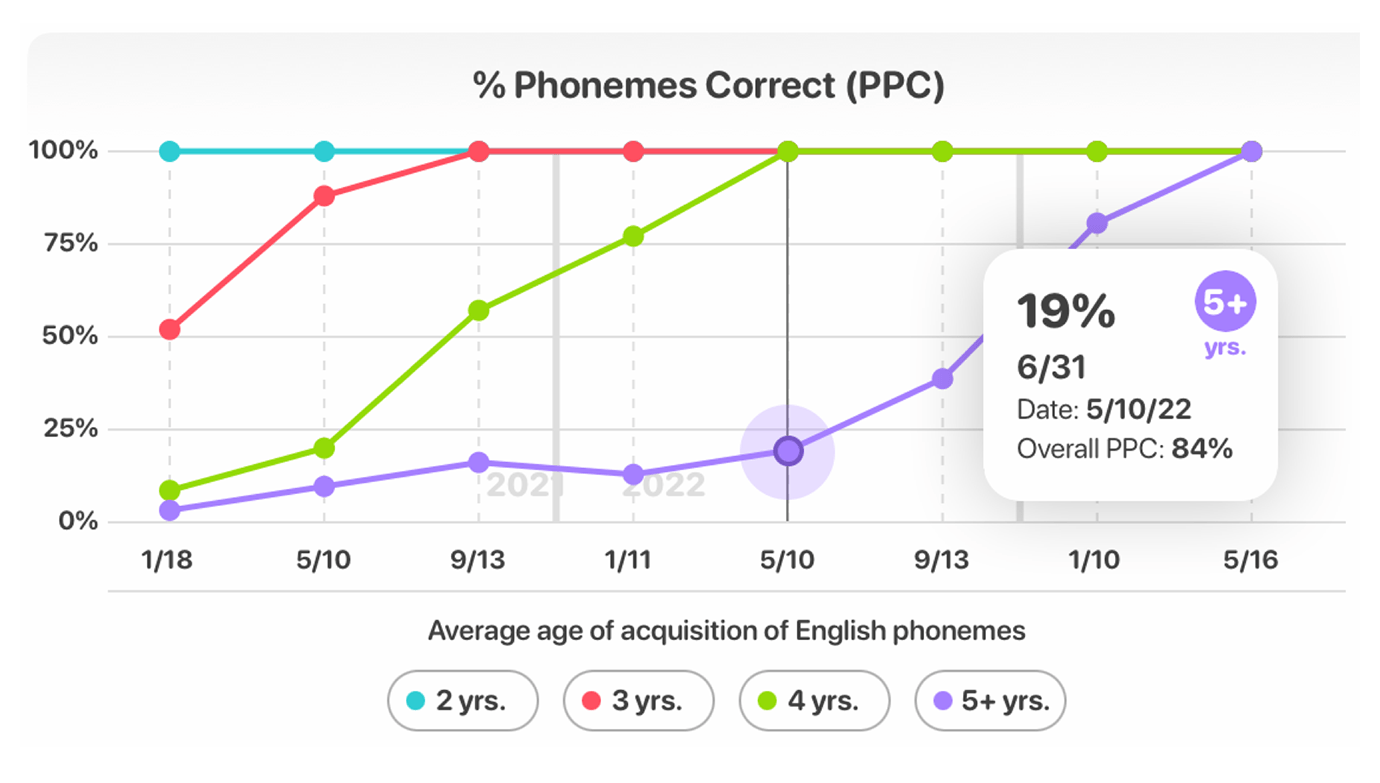
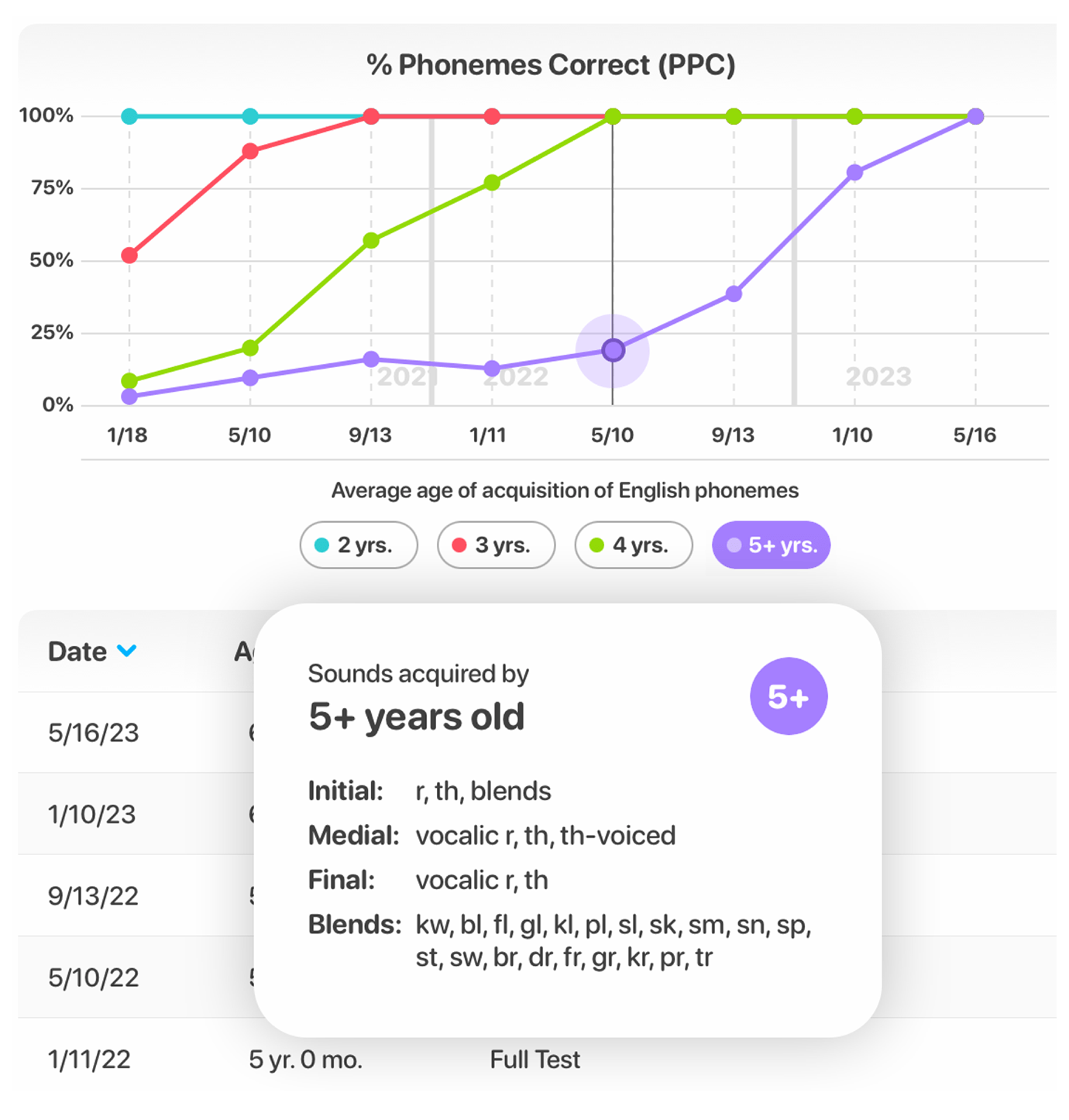
The Percent Phonemes Correct graph provides foundational data that is graphed according to the age of acquisition. This allows progress to be measured against the same set of sounds regardless of the test given. When you tap a data point on the graph, information including the test date and the overall Percent Phonemes Correct (PPC) for that test will be given. To see which sounds are included in each sound set, tap on the age of acquisition below the graph.
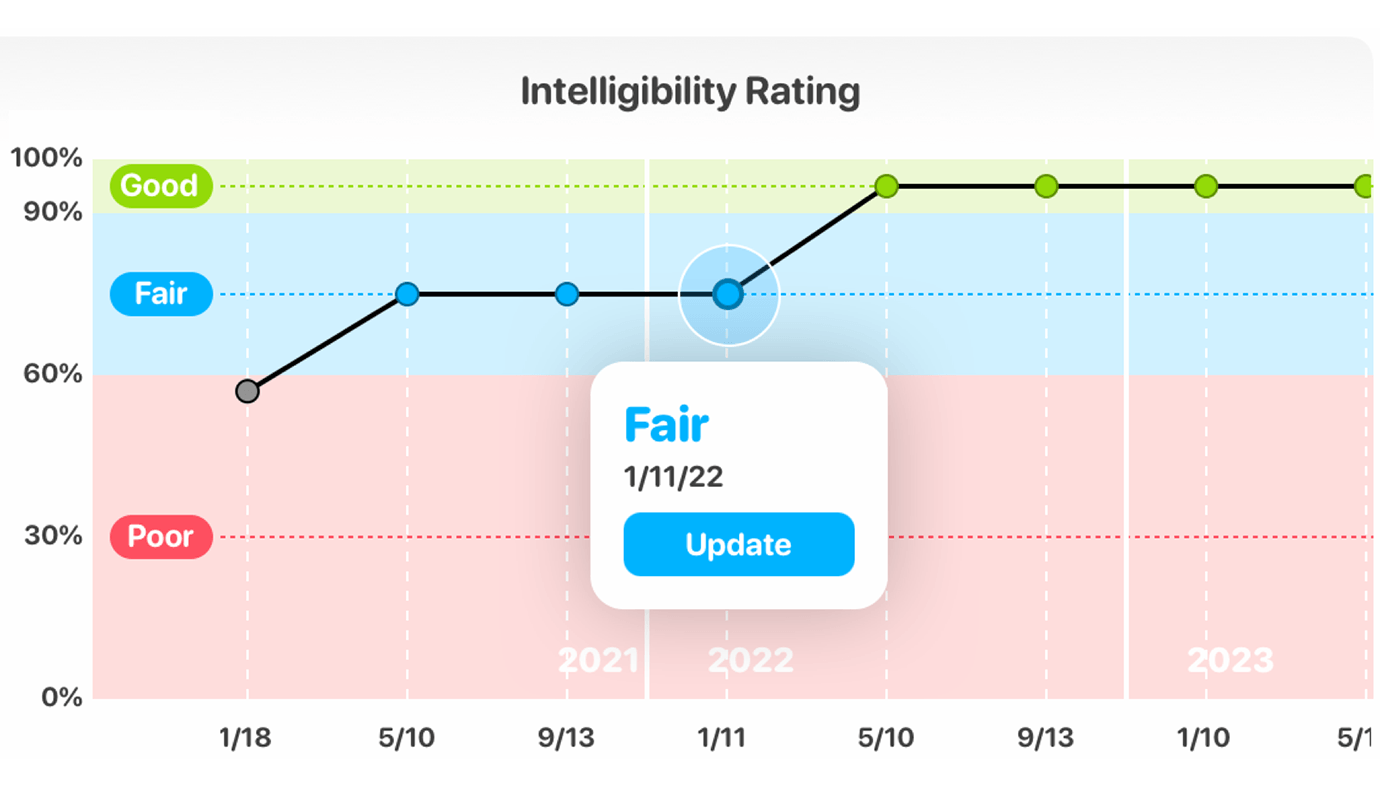
Intelligibility Rating Graph
The Intelligibility Rating Graph is a useful tool to indicate progress. Intelligibility is graphed based on the rating of “Good, Fair or Poor” assigned at the end of the test. If a percentage is assigned to the speech sample, that is graphed as well with a black data point. When you tap a data point on the graph, the intelligibility rating and test date will be displayed.
Tests Administered
Each test given is listed on the lower portion of the scores summary screen. The list includes the test date, the age of the child on the test date, the name of the test administered, the overall Percent Phonemes Correct, the intelligibility rating, and whether the test is complete or incomplete.
Test Details
To see the details of individual tests, tap the pertinent test. You will find the results organized by Words Tested, Errors Marked, Speech Sample, Report, and Recommendations.
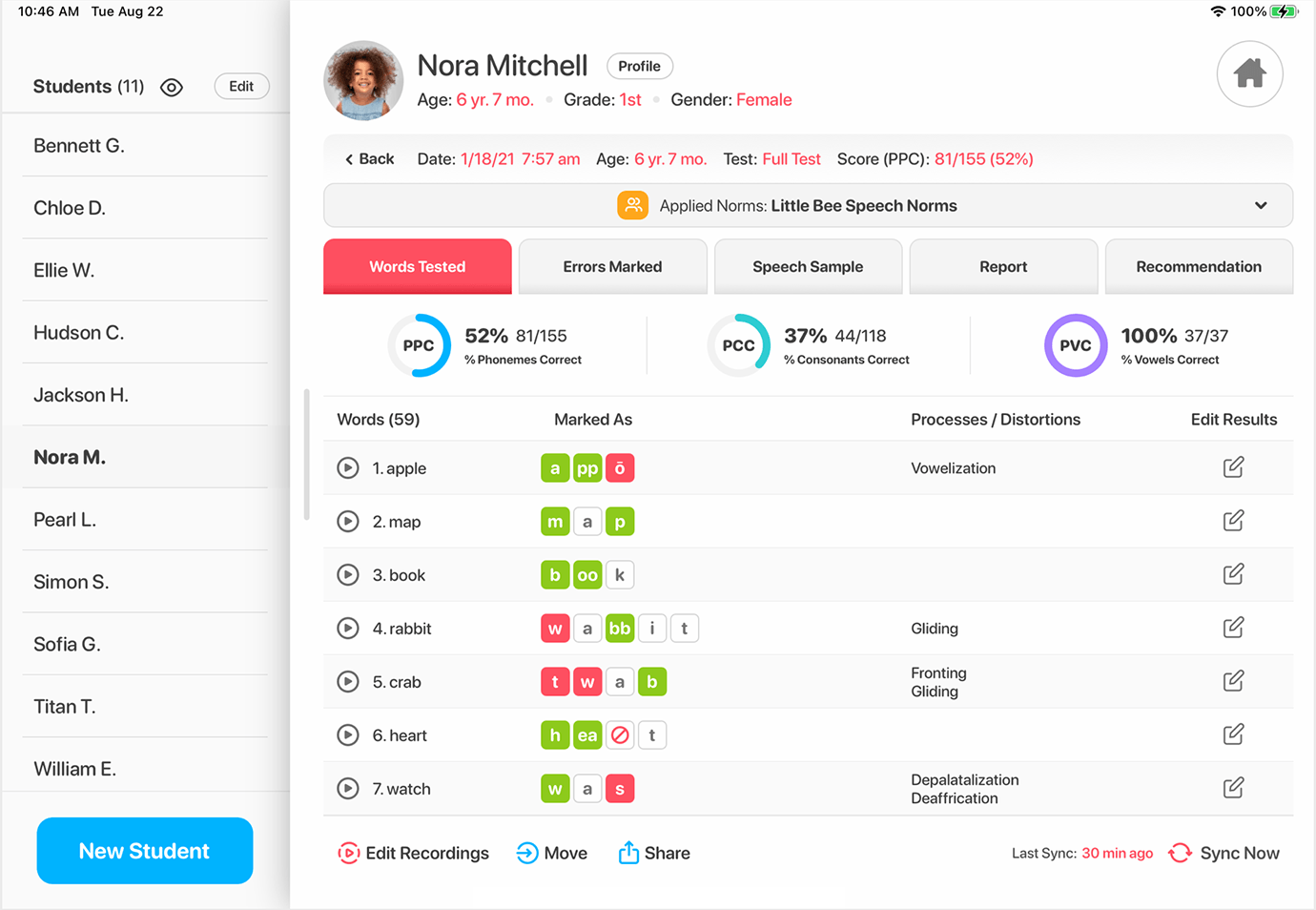
Words Tested Tab
The Words Tested screen will display all the words tested and how the words were marked. You can listen to recordings made and view notes. If edits are needed simply tap the edit icon next to the word that needs to be edited and you will be taken directly to that word in the test to make the edit.
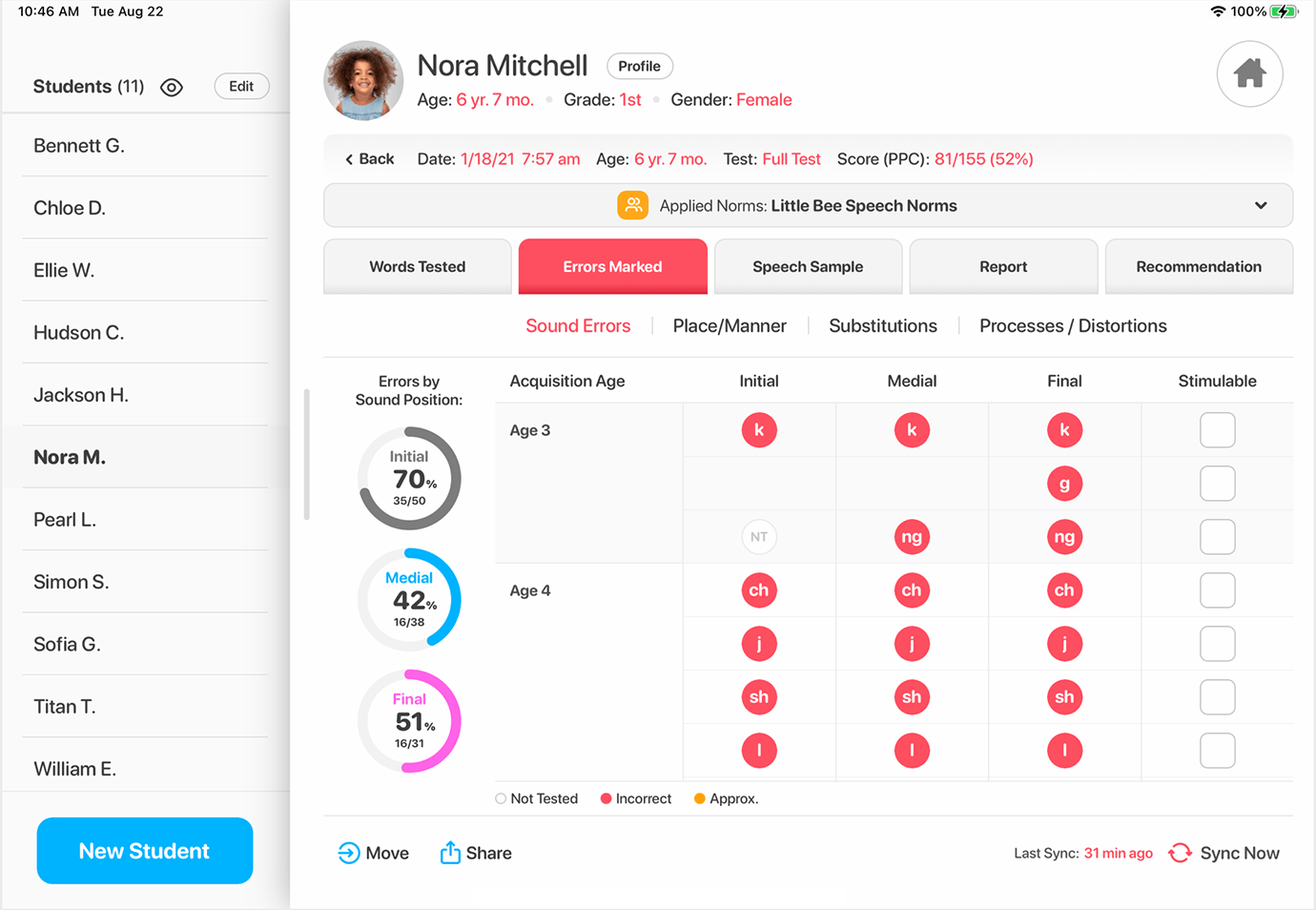
Errors Marked Tab
The Errors Marked section shows the errors marked in the test. There are four sub categories in this section. This tab group opens more detailed information in each category:
1. Sound Errors
2. Place/Manner
3. Substitutions
4. Processes/Distortions
Sound Errors
The Sound Errors screen will display all the sounds that were marked as “incorrect” in red circles and “approximate” in yellow circles. Each incorrect/approximate error is reported based on sound position and age of acquisition.
On the left is the overall percentage for sound errors marked in the initial, medial, and final positions.
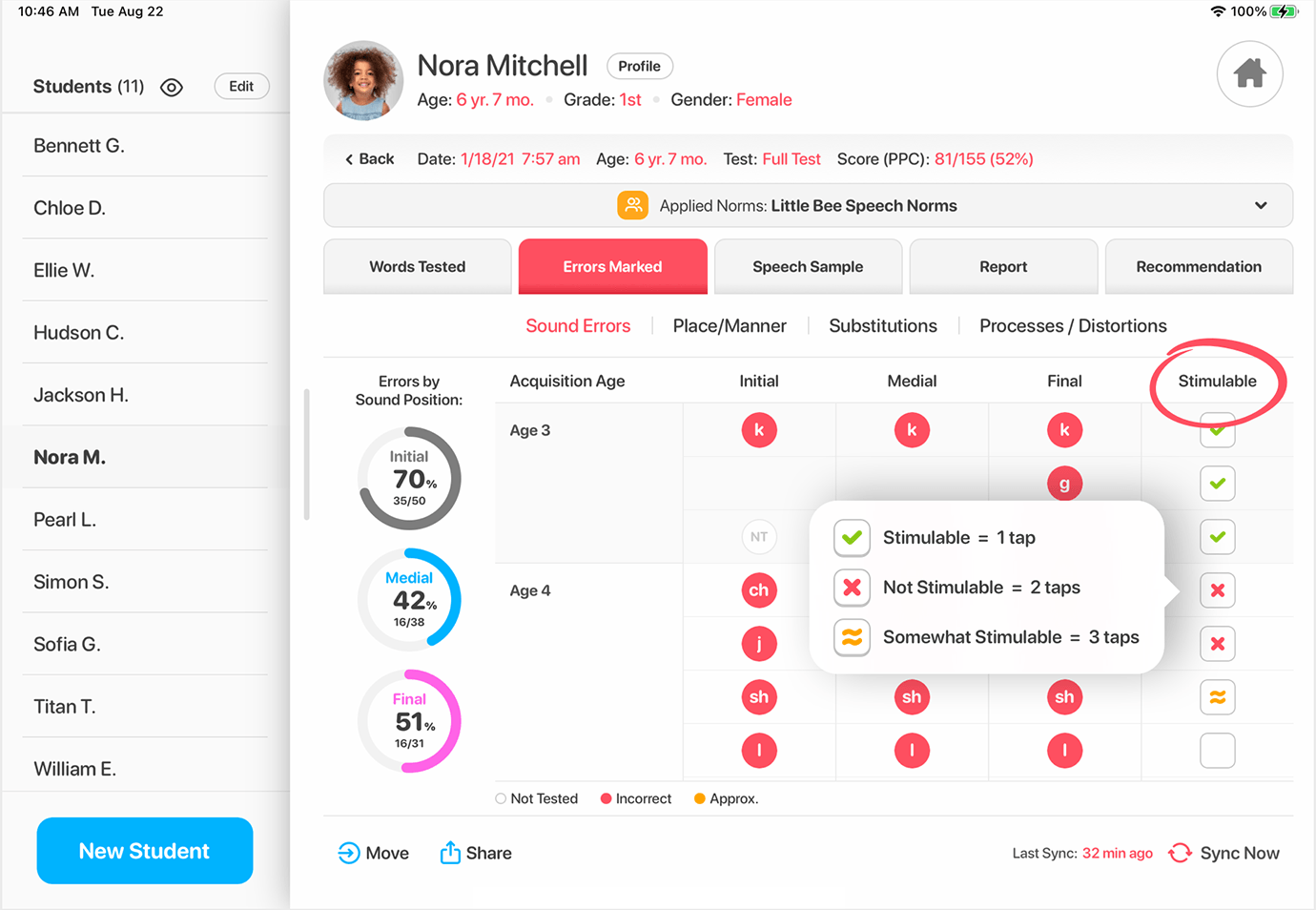
On the right column of the sound errors table, you can mark sounds that are stimulable with a single tap. A second tap will mark the sound error as not stimulable. A third tap will mark it as an approximation, and a fourth tap will return the sound to unmarked for stimulability.
Place/Manner
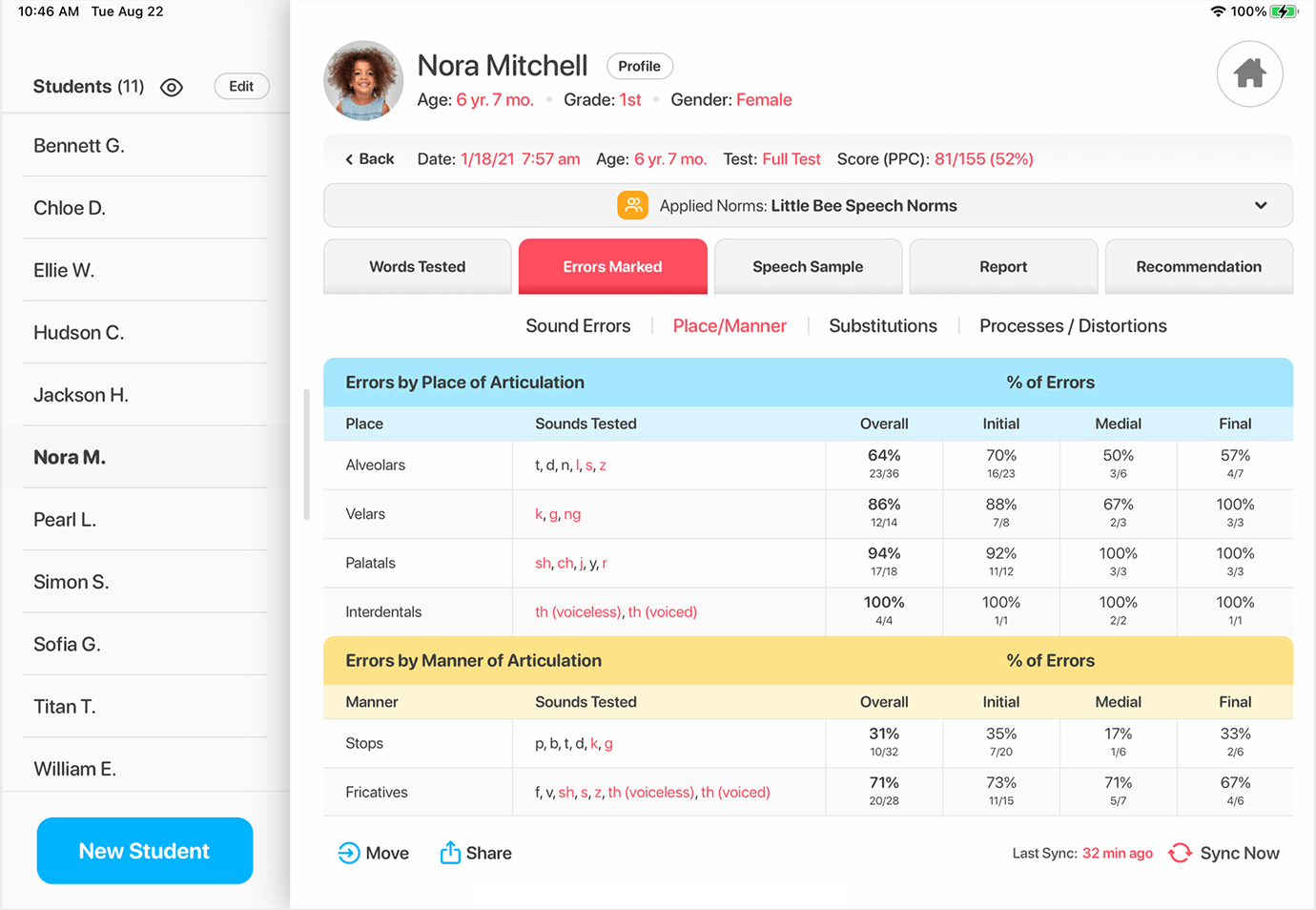
The Place/Manner screen will display sound errors based on the place of articulation and on the manner of articulation. It will also display vowel errors by position and quadrant when tested.
Substitutions
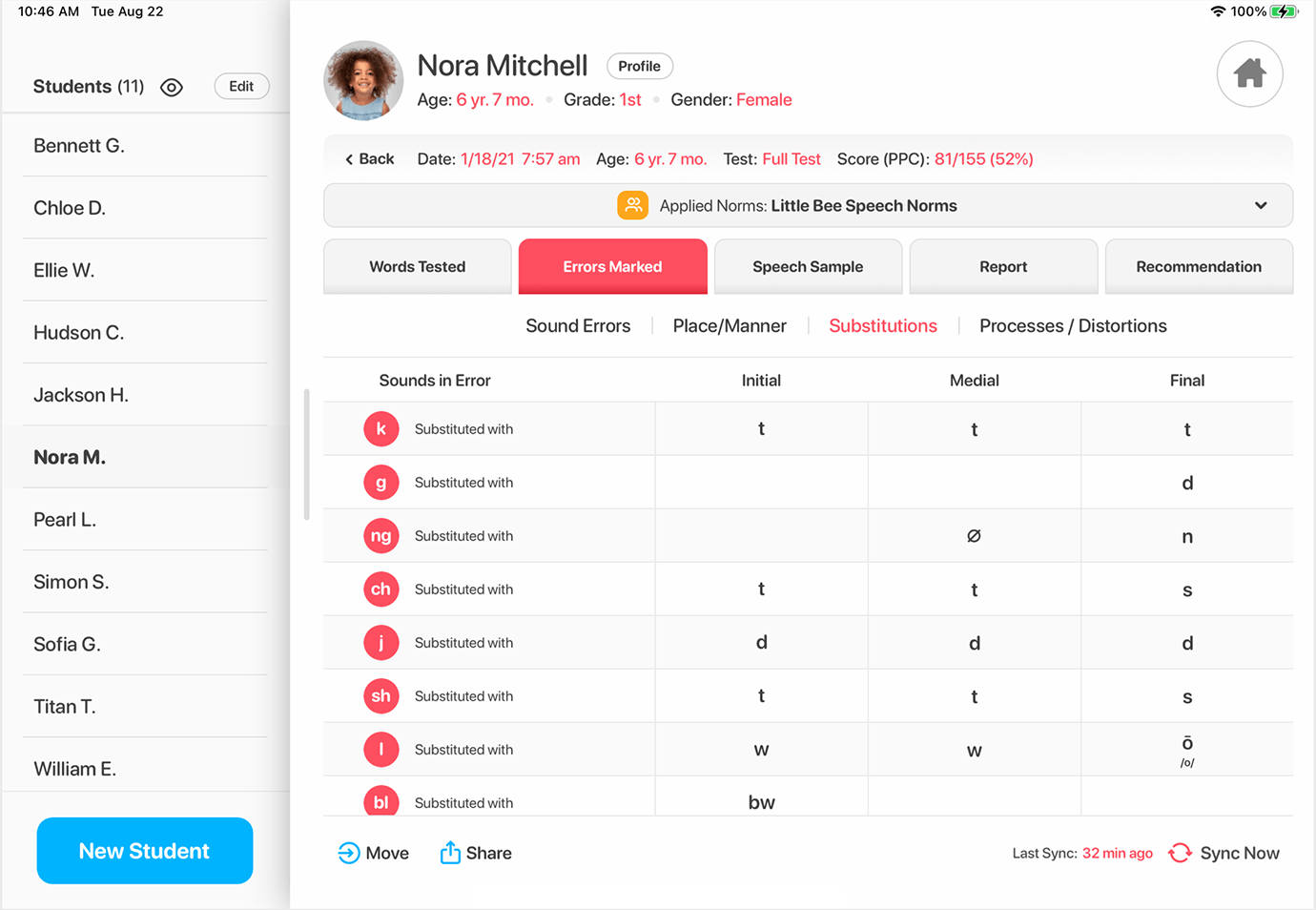
The Substitutions screen will display all the substitutions made and omissions marked for the sounds tested.
Processes/Distortions
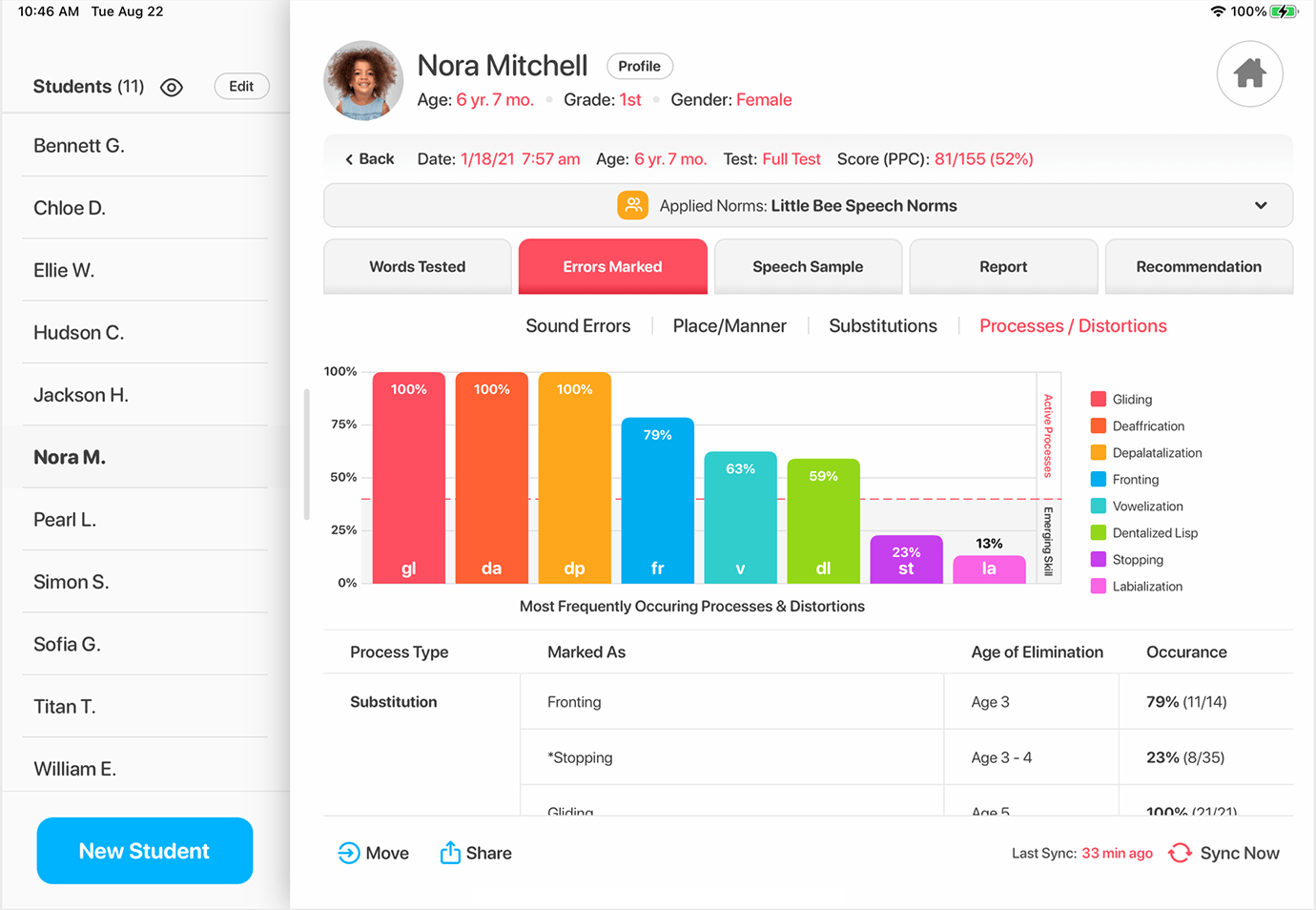
The final screen in the Errors Marked tab displays all the phonological processes and distortions marked in the test. It does this with a visual graph as well as a list of processes marked.
Speech Sample Tab
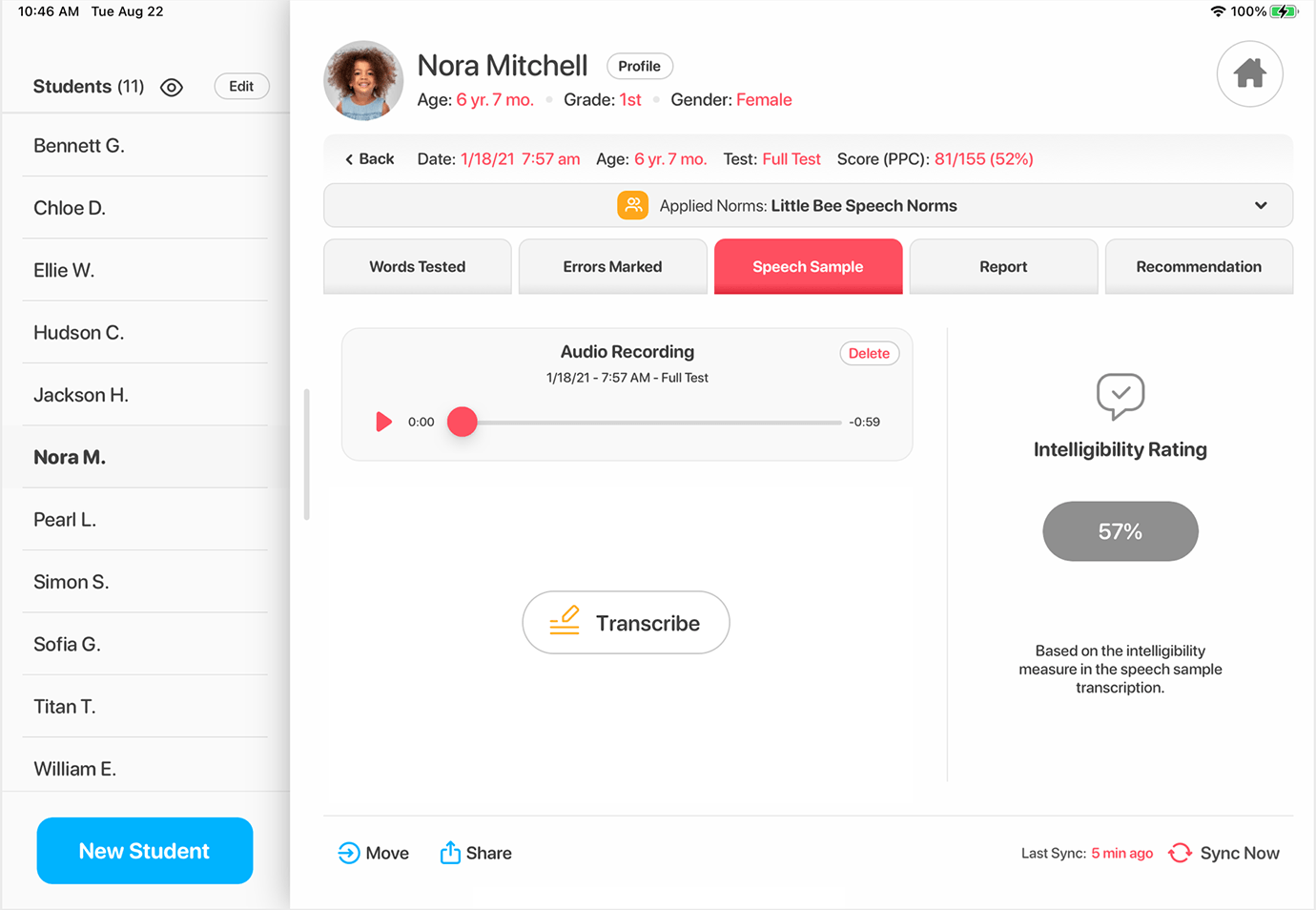
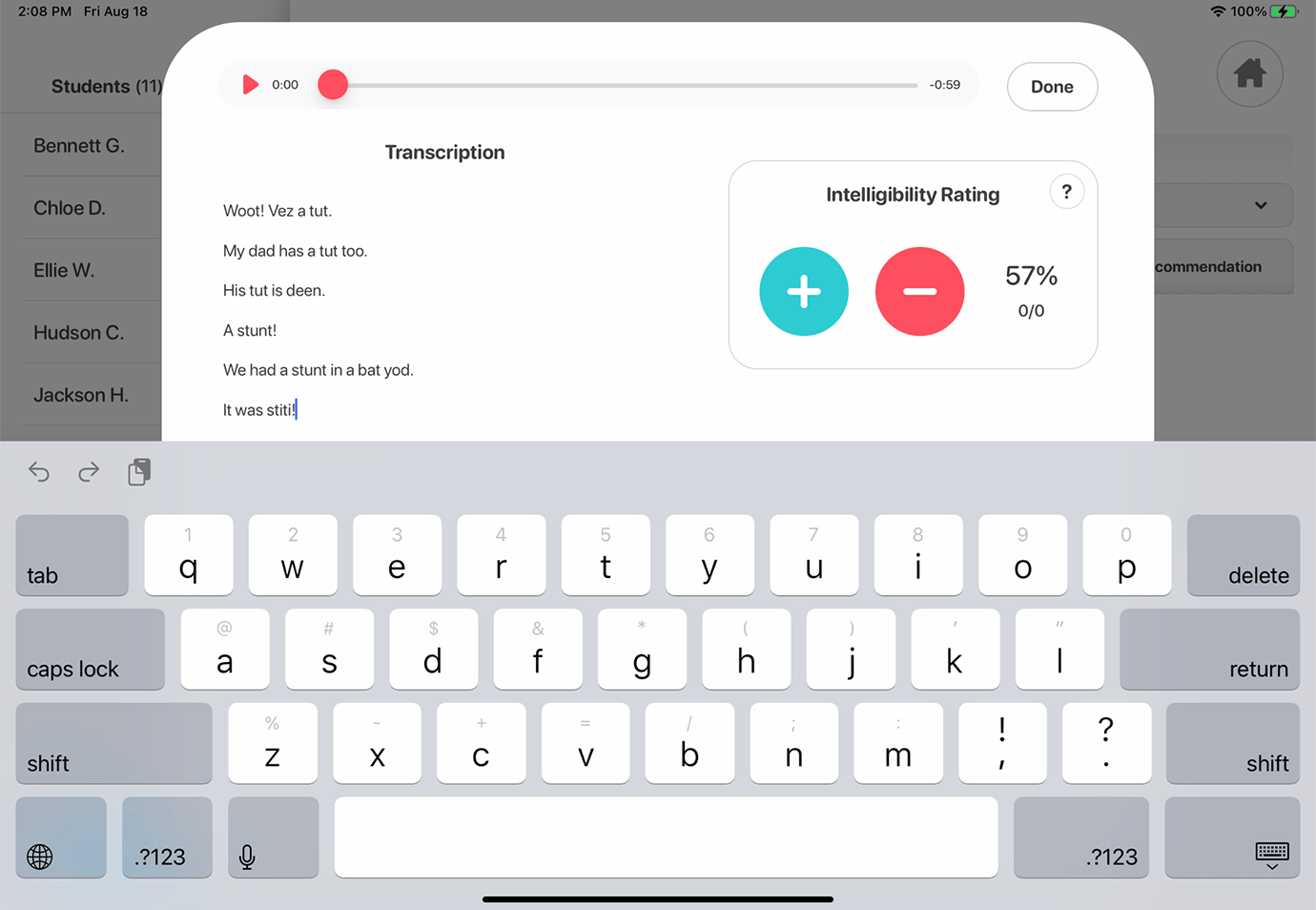
The Speech Sample is where the audio recording taken from the speech sample scene activity will be saved and available for playback. The intelligibility rating can be updated and a transcription can be entered or viewed from this page.
Report Tab
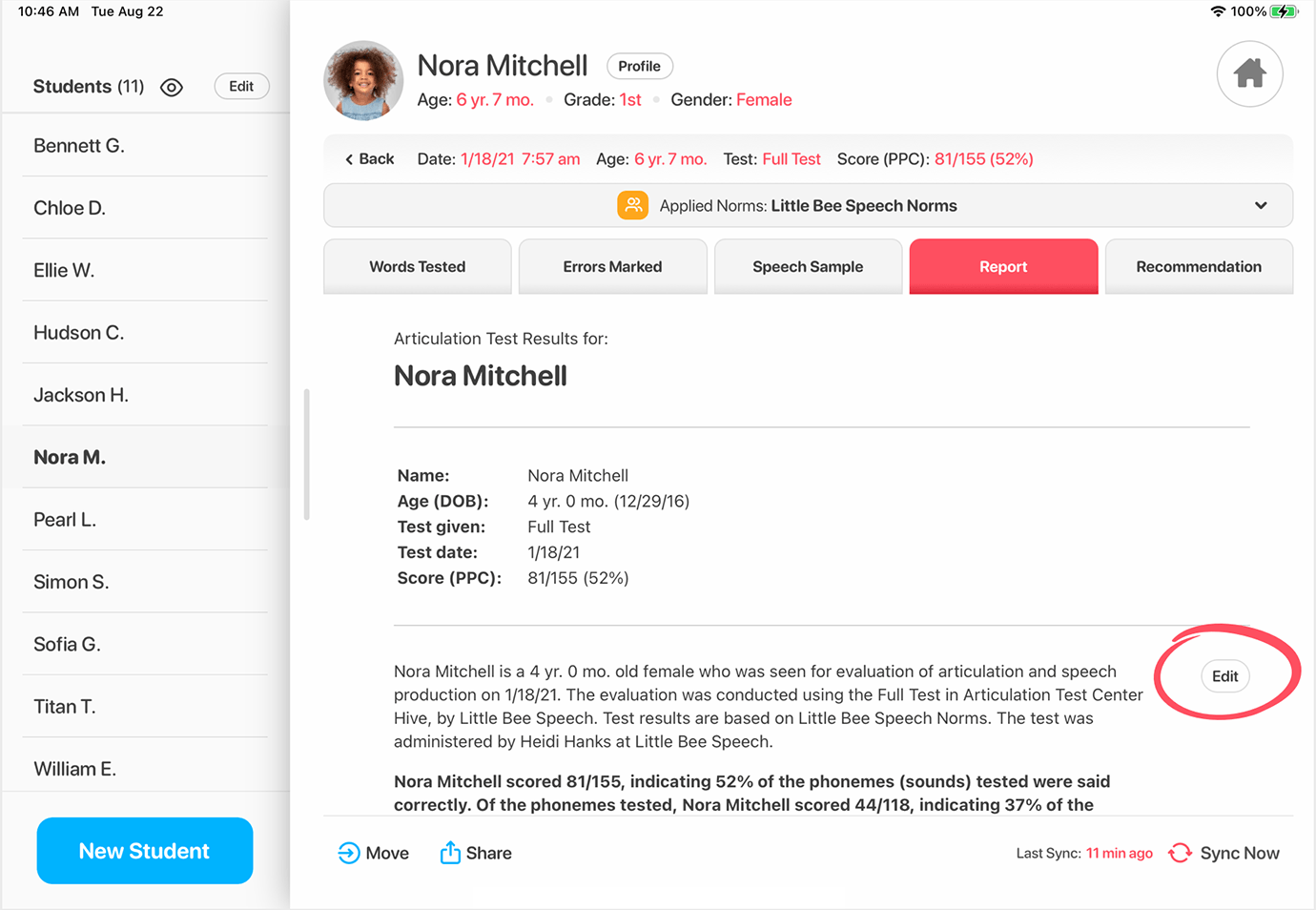
The Report tab presents a full written report summarizing the results of the selected test. When the Edit button is present, that means that portion of the test can be edited.
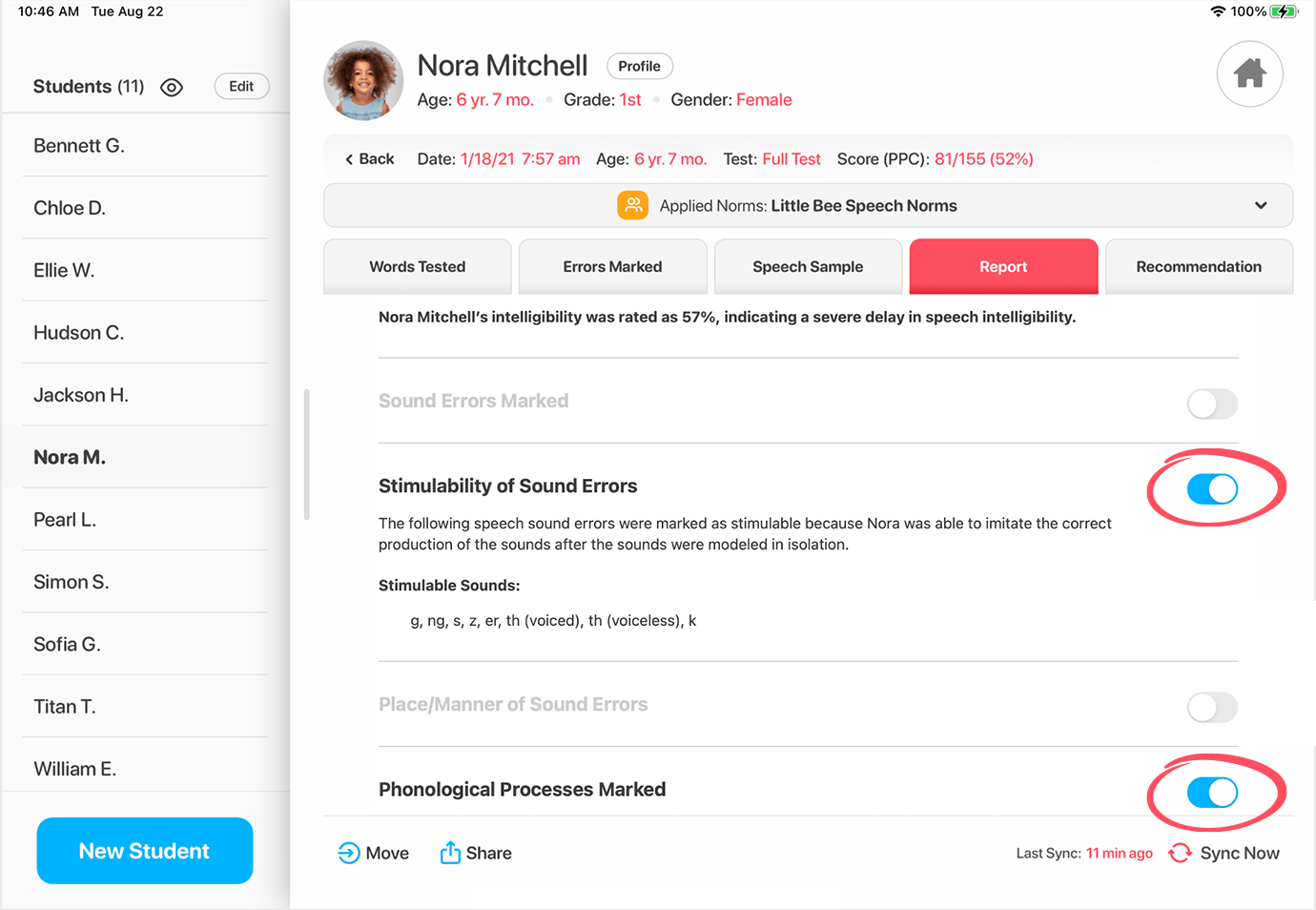
You can determine which portions are included in a report by using the show/hide toggle buttons and you can also add your own conclusions.
To view an example of a complete Articulation Test Center Hive report click HERE.
Recommendation Tab
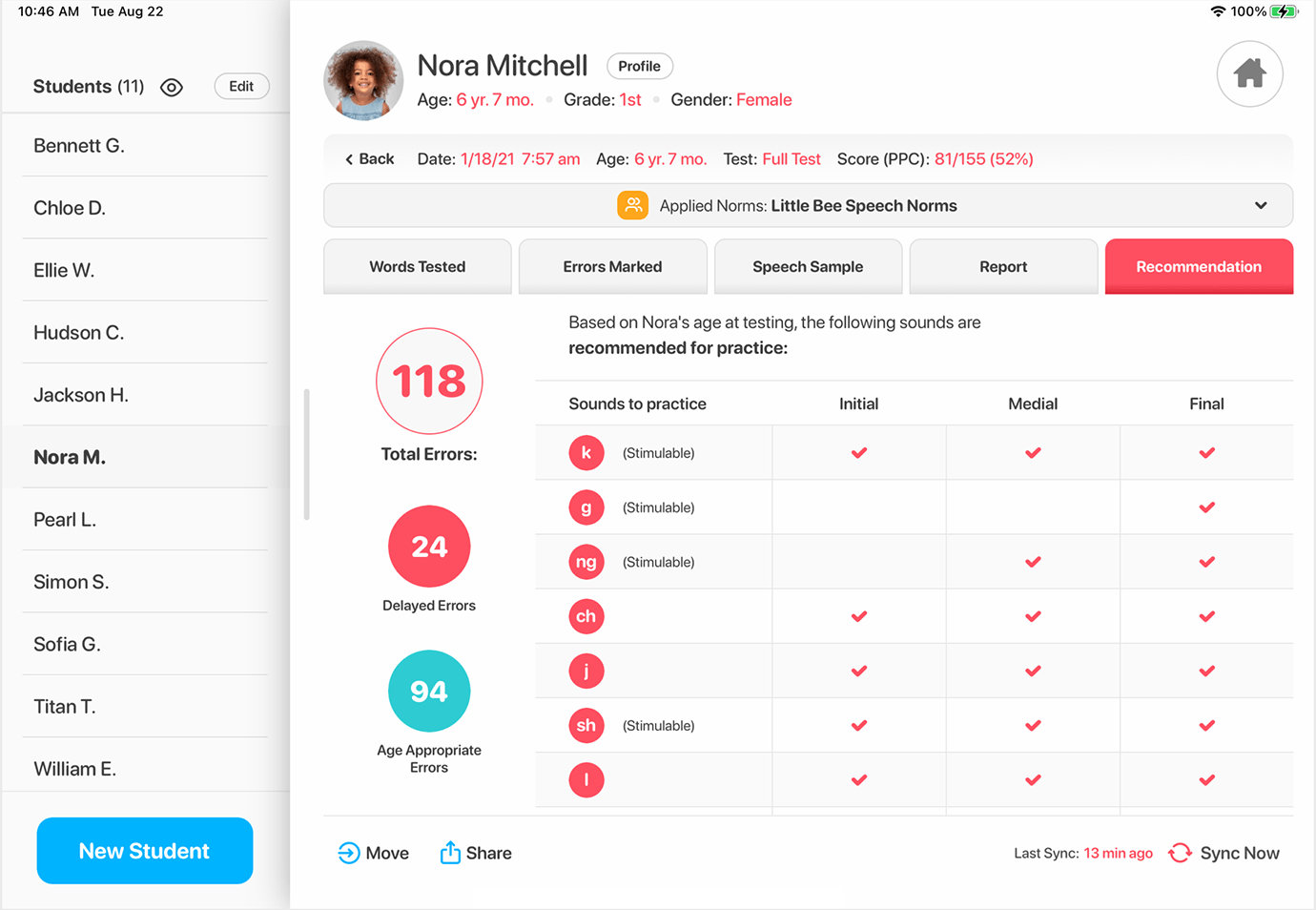
The Recommendation tab shows a quick summary of sounds recommended for practice and sounds that should be monitored for appropriate development. It also provides a summary of the phonological processes that are recommended to be targeted in therapy and the processes that are recommended to be monitored for suppression. The overall number of errors is reported, including the number of errors that are delayed and the number of errors that are age appropriate.
Custom Norms
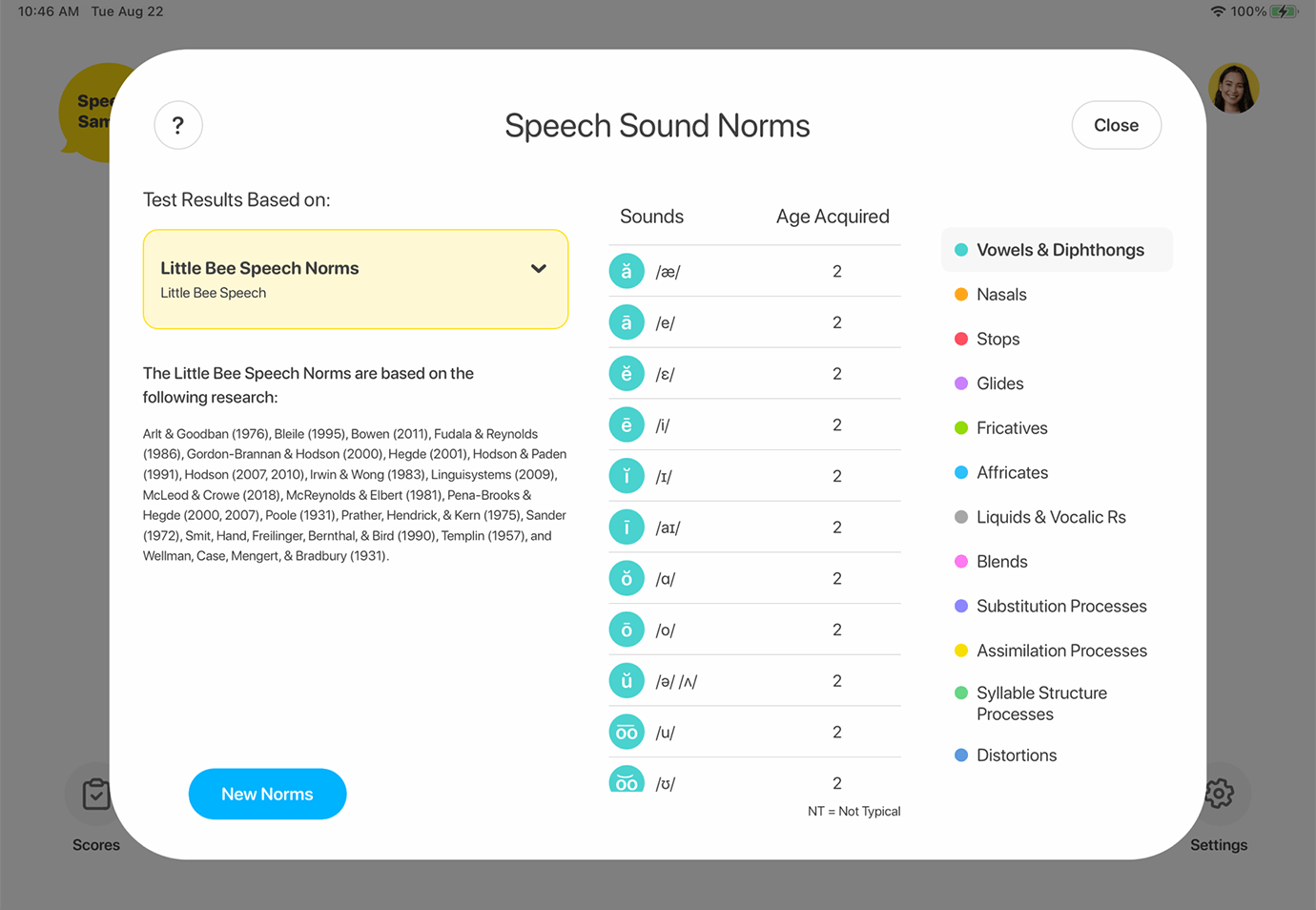
While we have based our norms on solid research, we are always looking for ways that you might need to customize our tools. If you are working at a school or clinic that uses a specific set of speech sound norms to determine eligibility for services, you may add these norms to Articulation Test Center Hive.
We know assessment is critical in speech language interventions and we take our work seriously. It’s easy to see that Articulation Test Center Hive is designed to simplify and engage the testing experience for test takers. Once you immerse yourself in ATC Hive’s many testing and reporting features, you will come to know that we invested an enormous amount of our resources and our best thinking in the test administrator–YOU!
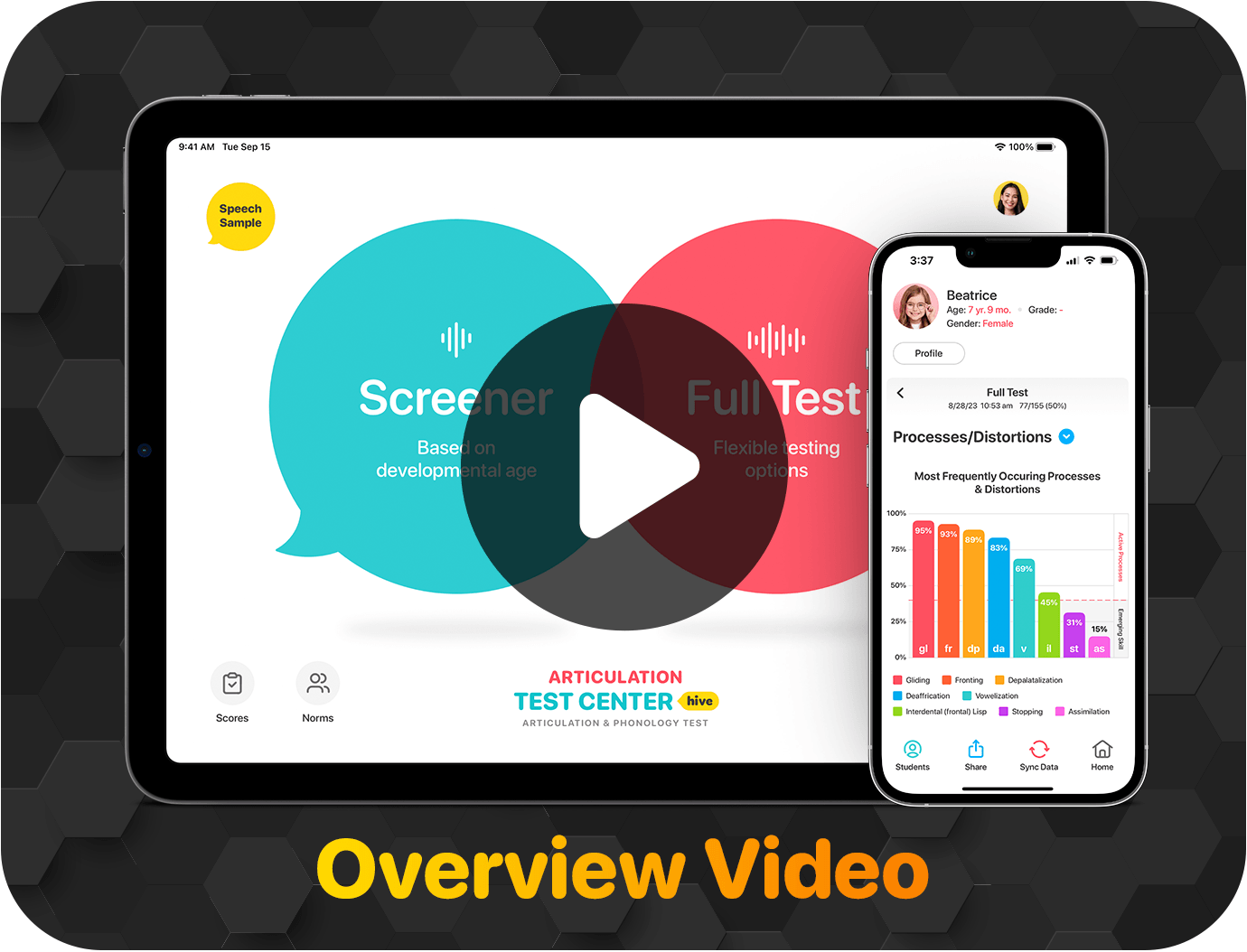
Click below for a quick overview video of Articulation Test Center Hive to see it in action!
Articulation Test Center Hive is part of the Little Bee Hive Membership (professional tier only). If you are a Little Bee Hive member you can download Articulation Test Center Hive and sign in with your current Little Bee Hive login at no additional cost.
The Little Bee Hive membership includes full access to Articulation Test Center Hive & Articulation Station Hive and offers unlimited students, tests and sessions.
Little Bee Hive Pro Membership Pricing (14-day free trial)
• $9.99/month per individual user (billed annually)
• $14.99/month per individual user (billed monthly)
Group Extended Trial
Groups with 5 or more SLPs (e.g., school districts, clinics) qualify for an extended FREE trial. Just fill out this form to get started!

Articulation Test Center Hive has a free 14-day trial. Download it today and see how much time it will save you when assessing students. We know Articulation Test Center Hive will be a powerful tool in your therapy room and will help you be the most efficient SLP you can be!