How to Restore Purchases in Articulation Station Classic
Update: After many years of supporting SLPs all over the world, Articulation Station Classic has been officially retired, and is no longer available for download on the App Store. It has been replaced with Articulation Station Hive, which you can learn more about HERE.
If you already own Articulation Station Classic, you can continue using it and purchase additional sound programs within the app, and the information in this article remains relevant.
————————————————————————————————————————————————-
When you make purchases within Articulation Station (whether they be individual sounds or upgrade to pro) you will need to “restore” those purchases when you move the app onto another device. In-app purchases do not automatically transfer when you download the app onto another device. The good news is that it’s a simple process to restore purchases and it’s free, of course.
It’s important to note that all purchases made within Articulation Station (and all of our other apps) are directly tied to the Apple ID that the purchases were made with. When restoring these purchases you MUST be signed in with that same Apple ID or the restore process will not work. Your Apple ID is comprised of an email address and a password.
If you have forgotten your password or Apple ID you can visit Apple’s support page for help.
If you are having issues restoring your purchases in Articulation Station chances are the Apple ID that is signed into the App Store on your device is not the same Apple ID that was used to make the purchase initially. To fix this there are a few extra steps to take to ensure that you can successfully restore your purchased sounds.
Follow the steps below to successfully restore your in-app purchases in Articulation Station.
If you don’t have Articulation Station currently installed on your device skip Step 1 and begin with Step 2.
Step 1.
Delete Articulation Station (the free version) from your device. If you have saved data in the app that you wish to keep you will need to back it up to iCloud before you delete the app, otherwise you will lose the data. You can restore the data back to the app later.
Watch the video below for a tutorial on how to back up your data to iCloud. The video shows the Spanish version of Articulation Station but it’s the exact same process for the English version.
Step 2.
Open the App Store.
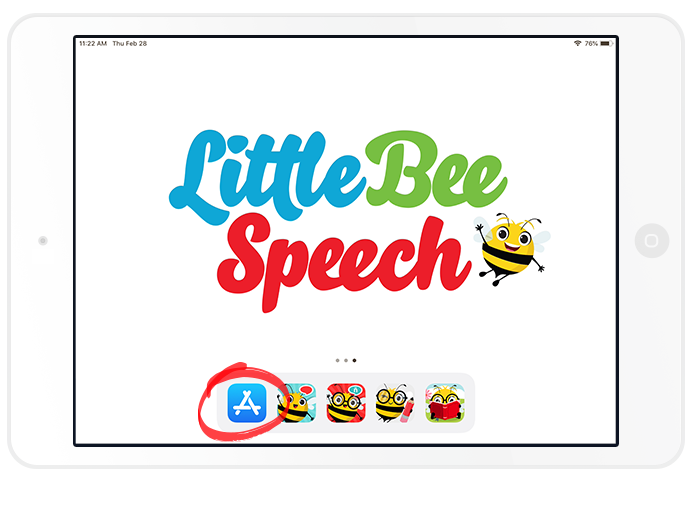
Step 3.
Tap the “profile” button (person silhouette icon) at the top right of the screen, then tap “Sign Out”
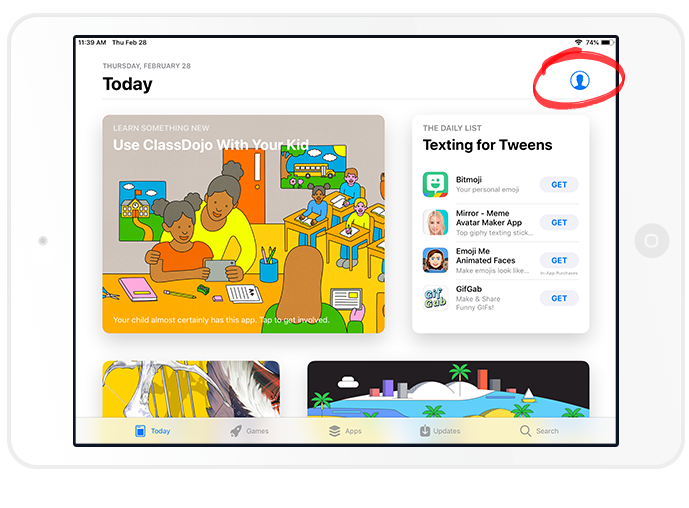

Step 4.
In the same pop up window, Sign in with the same Apple ID that was used to download Articulation Station and make the in-app purchases on your iPad initially.
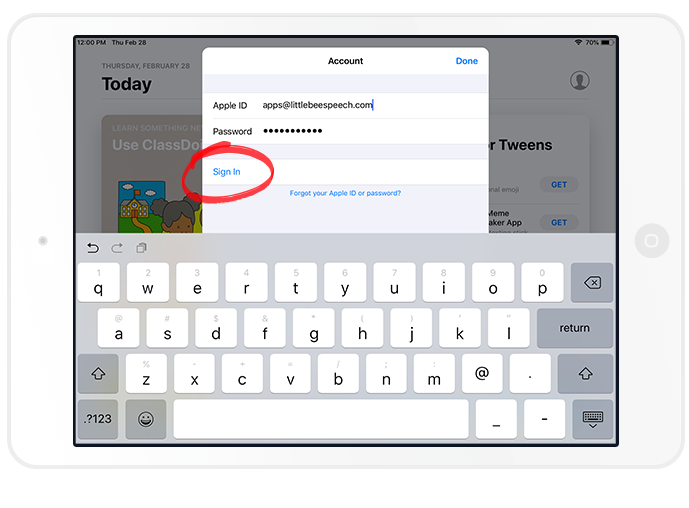
Step 5.
Once you are signed in, tap “Purchased”, then “My Purchases”.
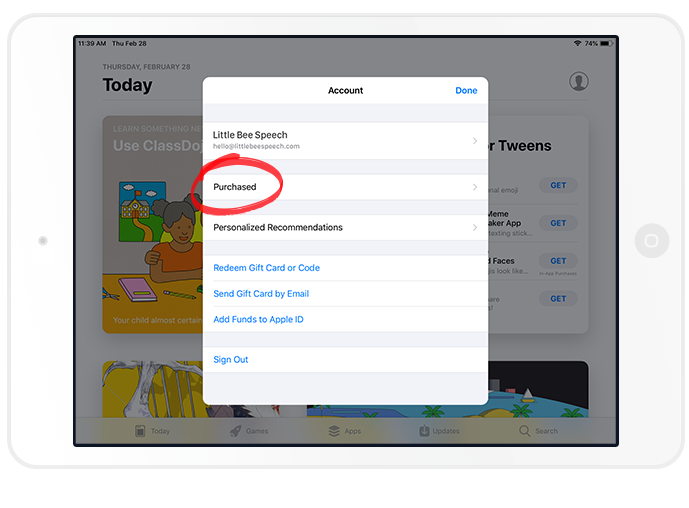
Step 6.
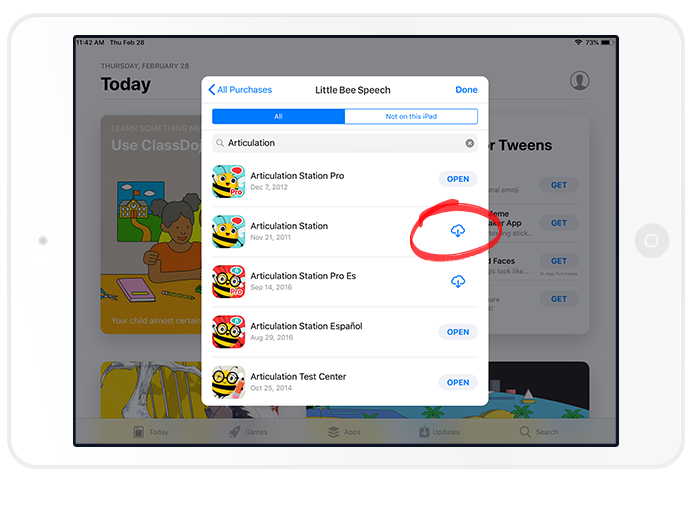
Find Articulation Station then tap the cloud icon download button next to it.
Step 7.
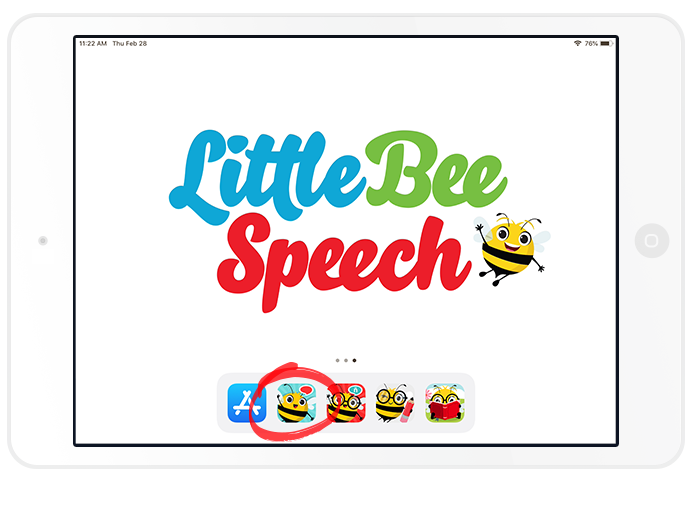
Once Articulation Station is downloaded to your device, open it.
Step 8.
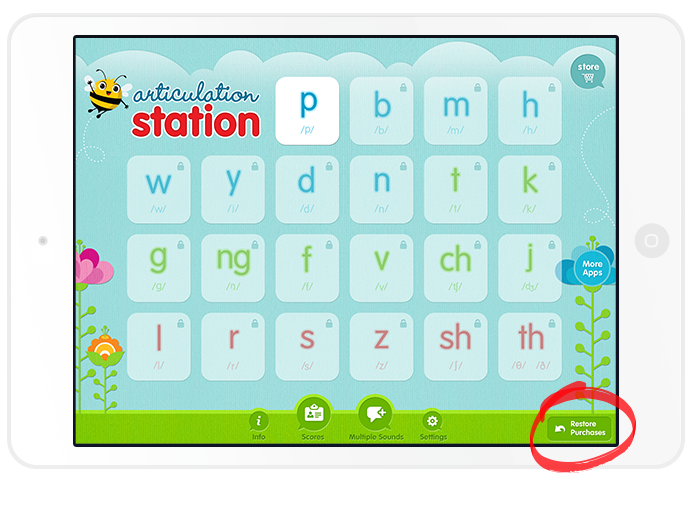
Tap “Restore Purchases” in the bottom right corner of the Articulation Station home screen and if you are still logged in to the App Store your purchased sounds will be restored.
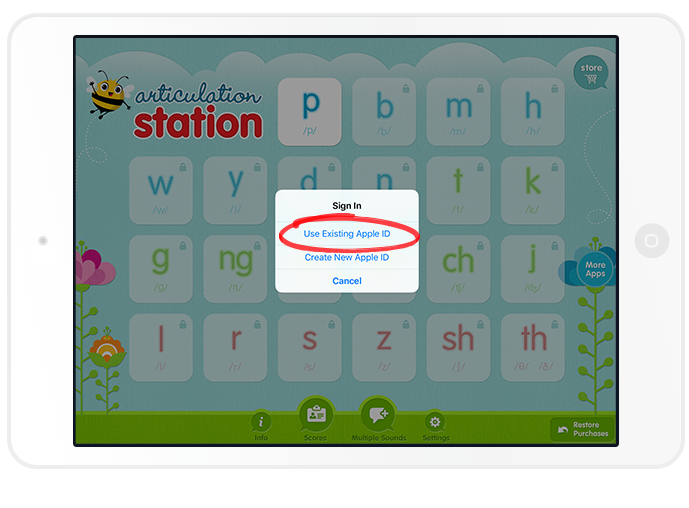
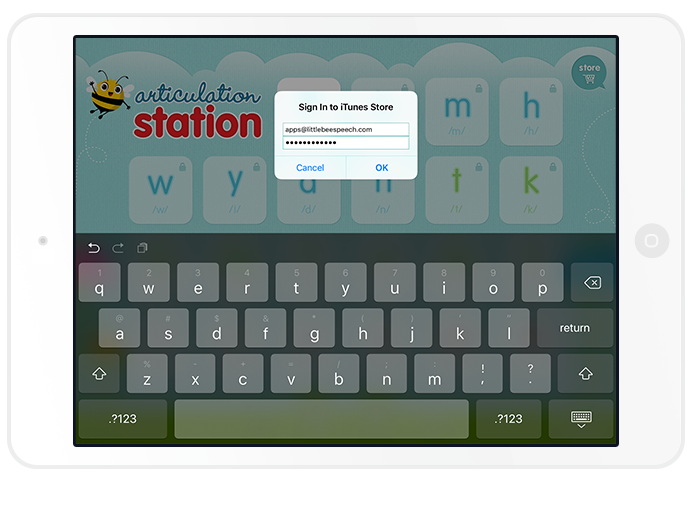
If the login prompt appears, log in with the same Apple ID used to purchase the sounds or upgrade to pro initially. There is also a “Restore Purchases” button located in the Articulation Station store which does the same thing.
Step 9.
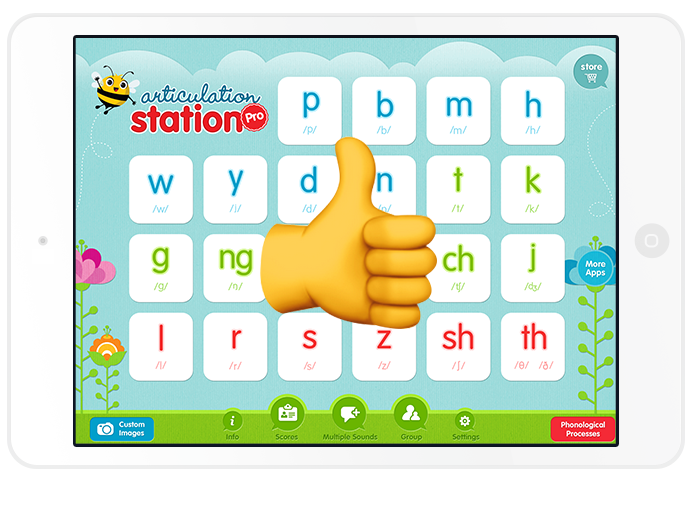
If you logged in with the correct Apple ID, your purchased sounds/upgrade to pro will now be restored and ready for you to use.
Step 10.
Enjoy!